
Administrator guide
For Owners and Managers who configure the business. It covers Settings, modules, roles, team, billing, and your security/privacy responsibilities.
Required permissions: Edit business settings & branding (
settings.manage) for Settings; Manage plan & billing (billing.manage) for billing, or View plan & billing (billing.view) to see the plan and invoices without changing anything; Add / edit team members and Manage roles & permissions for the team.
1. Business settings
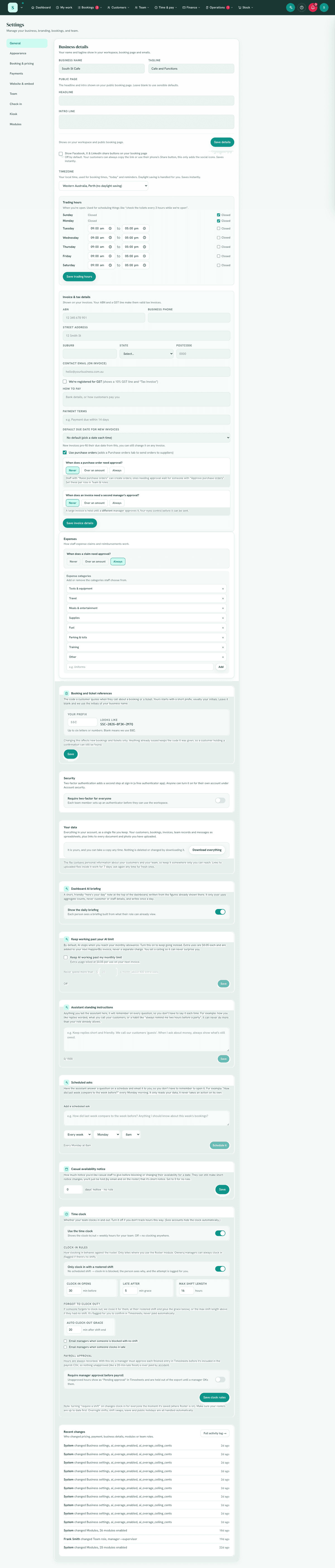
Settings → General. Settings is organised into tabs, and each tab answers one
question. Modules comes first because it decides which of the other tabs you
even see; the screen still opens on General.
General
Who you are, when you're open, and the details that appear on your booking page and emails.
- Business name and tagline.
- Opening / trading hours, used by availability and the calendar.
- Timezone, make sure this is correct; "today", schedules and digests depend on it.
- Daily email, the morning digest: turn it off for the whole business, or
change the hour it arrives (your local time). If you have the Reminders tool
on,
Operations → Remindershas the same switch plus which days it goes out and what goes in it.
Invoicing & tax
How the paperwork behaves, split out of General because both of these are long and neither is about who you are. Appears once Invoicing, Expenses or Payments is on.
- Business & tax details, your ABN and GST-registered status. These appear on invoices and receipts, and drive GST handling in Invoicing and the Accounting & reports.
- How often you report GST and Your GST basis, once you are registered: monthly, quarterly or annually, and cash or accrual, as registered with the ATO. The BAS worksheet opens on them.
- How to pay and the default payment terms new invoices start from.
- Document numbers, the prefix and the next number for invoices, quotes, purchase orders, adjustment notes and receipts. Worth setting if you also invoice from Xero, so the two never use the same number.
- Closing off a period, a lock date so nothing can be changed behind a lodged BAS.
- Purchase orders, whether you use them and when one needs approval.
- Invoice approval, whether a large invoice needs a second manager.
- Expenses, the approval rule and your category list. Set approval to Never if it is just you.
Connections
What outside services the business is linked to, and the one place to connect or disconnect them. Appears once Bookings, Payments, Accounting & reports or Pay run is on.
- Xero, which organisation you are connected to, with Connect, Reconnect and Disconnect. Whoever connects logs in at Xero and chooses the organisation, so everything lands in your own books. Connecting is not the whole job, so under the connection each part reports for itself: Accounting (what goes to Xero and whether it goes by itself, set up on Accounting & reports) and Payroll (whether timesheets can be sent yet, with the steps still to do listed in order, set up on Pay prep & export). A part that is not finished is marked and has a button to the page where it is finished. Setup, step by step opens one screen that does the whole thing in order, connecting included, and ticks each step off as it is saved; it can be left and picked up again. Disconnecting stops anything more being sent and keeps your mapping and matches.
- Stripe, connected and taking card payments or not yet, with a button to Money owed, where you connect your own Stripe account.
- Video calls, the link to your own Google Meet, Zoom, Teams or Zoho room, for services that happen online. Where to get your link shows each app's steps, with an Open button to it. Once it is saved, This happens online appears on each service, under Where it happens. Change swaps the link for every booking already made; Remove is refused while any service still happens online, and names them. Needs the settings permission, and every change is in the Activity log.
AI
- Dashboard AI briefing, the short "here's your day" note on your dashboard.
- Keep working past your AI limit, pay-as-you-go and the spend ceiling.
- With the Assistant on: standing instructions and scheduled asks.
Data & security
Who can get at your information, and what happened to it.
- Security, whether two-factor sign-in is required for your whole team.
- Your data, download a complete copy of everything you have, any time.
- Recent changes, who changed pricing, payment, business details, modules or team roles, with a link to the full activity log. HappierBiz support is our support team, signed in to help. System means nobody made the change in the app, such as an automatic task or a change made directly by our support team.
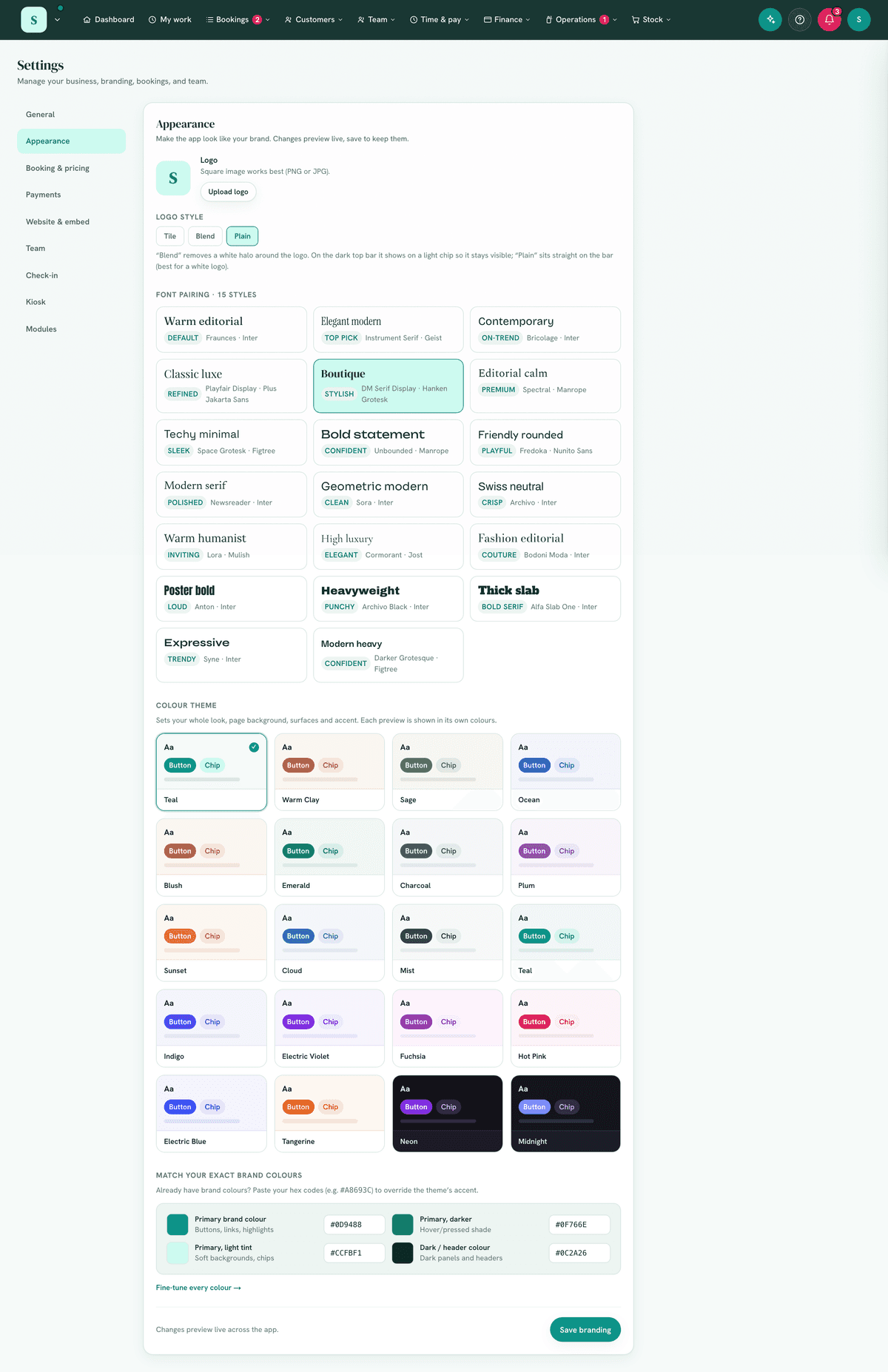
Appearance (branding)
- Upload your logo and choose its Logo style: Tile, the default, sets it on a white tile; Blend removes a white halo around a logo saved on a white background; Plain shows it with no tile. On the dark top bar and at the top of every email you send, Blend uses the white tile, so the logo stays visible. In emails, Plain sets the logo on a small tile of your colour, the way the top bar shows it. A dark logo, or one on a see-through background, can be hard to see on Plain, so choose Tile for it.
- Choose a font pairing: a heading font and a body font, chosen together. Fonts cannot be uploaded, so if your brand font is not offered, choose the pairing closest to it.
- Choose a colour theme. It sets the whole look: page background, cards, text, accent and the dark top bar. To match exact brand colours, paste their hex codes under Match your exact brand colours, or use Fine-tune every colour.
- Every choice previews straight away on your own screen. Your team and your booking page change when you select Save branding, and reloading the page discards an unsaved preview.
Wording (make it yours)
These wording controls do not sit in a tab of their own. They live inside the General tab and your booking/pricing tab (the one named after your booking word).
- What you call a booking (appointment, class, party, job, lesson…) and the people in it (clients, guests, members, patients…).
- The Recipes word (recipe, menu, service, product) and its unit.
- These flow through menus, pages and the AI assistant automatically.
Team
- Your team links to
Team → Staff list, the one place to add people and set their roles and access. - Mark yourself a solo operator to hide "invite your team" prompts.
- Time clock, whether your team clocks in and out, and the clock-in rules (rostered-shift requirement, early window, late grace, max shift, auto clock-out). This is separate from the Roster module: turning Roster off does not turn off clocking, and this switch works whether or not you use it.
- With Roster on: shift types, the clock geofence, and the casual availability notice period.
Modules
- The Settings tab named Modules (not "Tools"): the on/off switch for every module, grouped (Assistant; Bookings; Customers; Team; Time & pay; Finance; Operations; Stock).
- Turn on only what you need; switching is instant and reversible. Modules outside your plan are locked.
Per-feature flags: some modules have their own sub-toggles (e.g. Invitations & run-sheet's digital invitations, run-sheet, kitchen timing; deposit/pricing defaults; the booking opt-in prompt). Look within the relevant area's settings.
2. Modules & plans
- Plan controls which modules you may switch on; Settings → Modules controls which you actually use.
- Check Plan & billing for your live plan, price, team-member limit and inclusions, and to upgrade/downgrade.
- Solo = single-operator day-to-day toolkit; Business = everything, with 20 team members included and extra seats available to buy. (These names and contents are set by your provider and can change.) See Getting started › Plans.
3. Roles & permissions
Team → Staff list → Roles & permissions.
- Built-in roles: Owner (always full access, not editable), Manager, Supervisor, Staff, all but Owner are adjustable; create your own roles too. Add-on roles (Payroll Officer, HR, First Aid Officer and the rest) are listed separately and stack on top of a person's role.
- A person's role is their access. Their position / title is only a job title and gives nothing; see Role, job title, department and shift type.
- Nobody changes their own role or add-ons, and nobody hands out access they don't hold themselves.
- Permissions are fine-grained and only appear for modules you have on.
- Principle of least privilege: give each role only what it needs. Keep at least one trusted Owner.
- Full catalogue: User roles & permissions.
4. The team directory
Team → Staff list.
- Add staff, set each person's role, and manage access.
- Add member offers three ways in: Send invite (they pick Google, Microsoft or their own password), Set password (you hand them a temporary one), or No login (a record for someone who does not use the app).
- Someone with no email address? Choose No login and tick "…doesn't have an email address". They are still rostered, still accrue leave, still hold certifications, and they clock in and out on the kiosk with their own PIN, so their hours reach timesheets and payroll like anyone else. The only thing they miss is email, so no roster or leave-decision messages go out; their card says so rather than leaving you guessing. Add an address later and the emails start.
- Someone with no login cannot be made the owner: an owner who cannot sign in would lock the business out. Give them a login first.
- Customers can book them. Where your business already books people for something, Add member offers Customers can book [name] with the things people are booked for, all ticked. Untick what they don't do. They are bookable as soon as they are added: during their rostered shifts, or your opening hours if you have no roster. It makes the same entry as adding them under Staff, spaces & equipment, which is where you change it later. You need Manage staff, spaces & equipment to see it, and something has to be booked with a person already: a room or a service booked with nobody is set up there.
- Removing someone's access shows them an "Access removed" message rather than deleting their history.
- Pronouns are an optional field on each person's card, beside their phone, and show next to their name on the list. People can set their own from their card. There are no staff photos; the list shows each person's initial.
- New staff given a temporary password set their own on first login.
- One person, one record. Adding an email that is already on the team is refused and names who has it; if they are archived, rehire them instead. Set password for an email that already has a HappierBiz login is refused too: use Send invite, and they accept with the account they have.
- Invites. A pending invite shows where it went. To send it somewhere else, change their contact email, save, then Resend invite; the No app login box on a card sends to whatever address you type there. Withdraw cancels the link, and removes the person only if nothing is on file for them: anyone with shifts worked, hours or leave stays on the team without a login.
- Roles and add-ons apply as soon as you confirm them on the card, not when you press Save.
- Leave balances on a card are for people who can approve leave. Only the figures you change are saved, so editing a phone number never resets them.
- Resetting someone's two-step works for people on your team who hold no more access than you. Someone who also belongs to another business on HappierBiz is reset by our support team instead, because their two-step protects that account too.
- Every saved change to a card is in the activity log, naming the fields that changed (pay rate, start date and so on) but not their values.
- Staff keep their own details current under
My work → My details: phone, address, emergency contacts, date of birth, uniform size, medical notes, and their personal email, with whether their work emails go there too. Their job title and contact email are yours to set. - Onboarding checklist. Each person's card lists your onboarding steps, and Edit checklist changes them for everyone. Each step can open a form (one of your team forms, or a public form that is switched on) or a document from Documents. The new person sees the list on My work under Your first week: a step with a form shows Fill in the form, one with a document shows the document and I've read it (once they have opened it). Sending the form, or marking the document read, ticks the step; the card shows Form sent or Read beside it and you can't untick those. You tick the rest. A linked document opens for them whatever their access to Documents, so you can only link a document you can open yourself. Two steps can't have the same wording, because each person's ticks are kept by it: rewording a step clears its ticks.
- Files on their record: each person's profile has a Files section for their CV, signed contract, ticket or visa copies (PDF, Word or an image, up to 10 MB each). Files are private, open through short-lived links, and only people who can manage the team see them. Hiring someone from a job application form copies the application's documents in here automatically, badged "From application". A member with files on record can't be deleted until the files are removed, the same as any other employment record.
Where a person's emails go, and a second address
Each card says where that person's emails go, under the email boxes: Their emails go to …, naming every address.
- Someone who signs in gets their work emails at the address they sign in with. Someone with No login gets them at the Contact email (notifications) on their card.
- A second address. Type it in Personal email, tick Also send their
work emails to their personal email, and save. From then on each work email
goes to both, as two separate emails. Staff can do it themselves at
My work → My details, and untick it there. - The tick appears once the personal email is a full address that is not already where their emails go. Clearing the personal email stops the copies. It is off for everyone until ticked, and each business sets it on its own card.
- What goes to both: the roster and roster changes, shift swaps and requests, leave, timesheets and timesheet reminders, expenses, jobs, forms and safety checks, and for the people who run the business their alerts (new bookings, customer messages, approvals, payment problems), the daily email and scheduled assistant answers.
- What never does: the team invitation and the password reset go only to the address they sign in with. A copy of either would let whoever reads the second inbox into their account. Phone notifications and the bell follow their login, not an email address.
- Send a test email on their card goes to every address their emails go to, and names them. Save first: it tests what is saved. An address on the do-not-send list, because it bounced or was reported as spam, is named and left out, and the other still gets the test.
- Personal email is the person's own second inbox. There is no box for copying somebody else, such as a parent of a junior.
- Ticking or unticking it is in the activity log as work emails to their personal email.
5. Billing & lifecycle
Plan & billing.
- See trial status / days remaining, current plan and what's included.
- Subscribe, upgrade or downgrade.
- Invoices lists every invoice from HappierBiz, newest first, with the period each one covers, whether it is paid, and a PDF to download. The link in a receipt email stops working after about 30 days; the copy here does not.
- Whoever does your accounts can see the plan and invoices without being able to change or cancel anything: give their role View plan & billing.
- If billing lapses, the back-office locks (data preserved) until reactivated.
If the card for your plan is declined
Usually the card has expired or been replaced.
- Who is told: the owner gets one email, "Your HappierBiz payment didn't go through", with the amount and the date the card is tried again. Everyone who can manage billing sees a red line at the top of every page. Nobody else on the team is told, and your customers are told nothing.
- Nothing stops yet. Everything keeps working while the card is tried again over the following days.
- To fix it: open Plan & billing, press Update card and add or choose a card on Stripe's secure page, then come back and press Pay now. Pay now takes the overdue amount straight away and the red line goes. A new card added on Stripe's page on its own is only tried at the next automatic retry, days later, so finish with Pay now.
- If every retry fails, the plan ends. The owner is emailed, the back office closes for the whole team (they see a paused screen naming the owner), and online bookings stop without saying why. Nothing is owed for the payment that failed: its invoice shows as Void. Nothing is deleted either: choose a plan on the lock screen and everything is back as it was. That screen also has Download everything and Show past invoices.
Before your card expires
Plan & billing shows the card your plan is charged to, and when it expires.
- A week before your plan renews, if that card runs out before the renewal date, the owner gets one email, "Your card expires before your HappierBiz plan renews", and Plan & billing shows the same warning with Update card.
- A card that is still valid on the renewal day gets no email, even if it expires later that month. Banks often send a renewed card's new date automatically, and that counts.
- Update card opens Stripe's secure card form and brings you back when it is saved. Every renewal from then on is charged to the new card.
- Account-level suspension is operator-controlled; contact support if you see "Account paused".
6. Security & privacy responsibilities
HappierBiz is built security-first, but you control how your business uses it:
- Least-privilege roles. Don't give everyone Manager. Review roles periodically and when staff leave.
- Remove access promptly when someone leaves (Team → Staff list). They lose access immediately; their records remain as history.
- Sensitive files belong in Documents (private storage + expiring links), not public buckets or shared drives. Documents also carries its own access layer: put HR files, contracts and pay records in their own folder and set who can see it (Operations → Documents, the settings icon on that folder's card, then Who can access), describing it in plain English and letting AI propose the rules if you would rather not think in permissions. Least privilege applies to files as much as to screens.
- Banking & identity details for payments are entered on Stripe's secure pages, never collect or store them elsewhere, and never share them in chat or email.
- Marketing consent must be genuine, never pre-tick or assume it. The system records when/how consent was given; honour unsubscribes (handled automatically).
- Data isolation is automatic, no other business can see your data, but your internal access control is up to your role setup.
7. Data & records
- Customers are derived from bookings/invoices; deleting a customer removes notes/tags but keeps booking/invoice history as a business record.
- Leave balances are indicative only, your payroll system (e.g. Xero) is the source of truth.
- Timesheets export to a payroll CSV; invoices export to an accounting CSV (Xero/MYOB/QuickBooks).
- Safety keeps an exportable audit trail.
8. Recommended admin routine
| Cadence | Do this |
|---|---|
| Daily | Scan the dashboard Needs attention; approve booking/shift/leave requests. |
| Weekly | Approve timesheets; review the morale read; clear the reminders digest. |
| Monthly | Export accounting; import the bank statement and clear To look at; check expiring certifications; review roles & access. |
| Each July | Record an odometer reading for each vehicle on 30 June; clear Missing details on Equipment costs; hand your accountant the Profit and loss for the year, the Bank statement CSV, the Vehicle trips print and the Equipment costs print (the asset register). |
| As needed | Update branding/wording; turn modules on/off; manage the team. |
Related: Quick-start · Roles & permissions · Troubleshooting