
Module · Stock & ordering
Where to find it in the app
- Use it: Stock → To order
- Turn it on/off: your business name (top-left) → Settings → Modules → Stock → Stock & ordering
Plan: Solo & Business · Module group: Stock · Navigation:
Stock → To order·Stock → Stock list·Stock → Purchase orders·Stock → Suppliers
1. Overview
Purpose. A shared, synced ordering list that replaces the back-of-house whiteboard. Anyone can add what's needed, group by category and supplier, and tick items off as they're ordered and received. It can also track stock levels and suggest low items to add, and holds a suppliers directory.
2. When to use it
- For day-to-day "we're out of…" ordering.
- To keep supplier contact and account details handy.
- To turn low stock into an order list.
3. Required permissions
- View stock & ordering (
shopping.view). - Manage stock & ordering (
shopping.manage).
Staff permissions. Managers can set exactly what staff with view access may do here: open More → Settings on To order or the Stock list and toggle Add items, Tick items off, Remove & clear items, Receive into stock and Edit the supplier book to suit your business. Managers can always do everything.
4. Navigation path
Stock & ordering has four pages, under Stock in the menu:
| Page | What it is for |
|---|---|
Stock → To order |
The shared list of what to buy or order. |
Stock → Stock list |
What you have on hand, counted, valued and reordered. |
Stock → Purchase orders |
Orders sent to suppliers, and receiving them. Shown with Invoicing on, purchase orders switched on, and Raise purchase orders, Approve purchase orders or View invoices. The same list as Finance → Invoicing → Purchase orders. |
Stock → Suppliers |
Your supplier book. |
Rename the list
The menu item and the page heading read To order until the list has a name of its own. Open More → Settings and type one under What you call the list, up to 40 characters. Cafés and restaurants start as Stock order, trades and automotive businesses as Parts order. Clearing the box goes back to To order. The name of another Stock page (Stock list, Purchase orders or Suppliers) is refused, so the menu never holds two items of one name. Settings, Modules then shows the module under that name too. It needs Manage stock & ordering.
5. What you'll see
The search in the top bar (the magnifying glass, or ⌘K) finds a stock item by its name, part number, SKU, a supplier's number or a barcode, and shows what is on hand, on order, the bin and the last jobs it was used on.
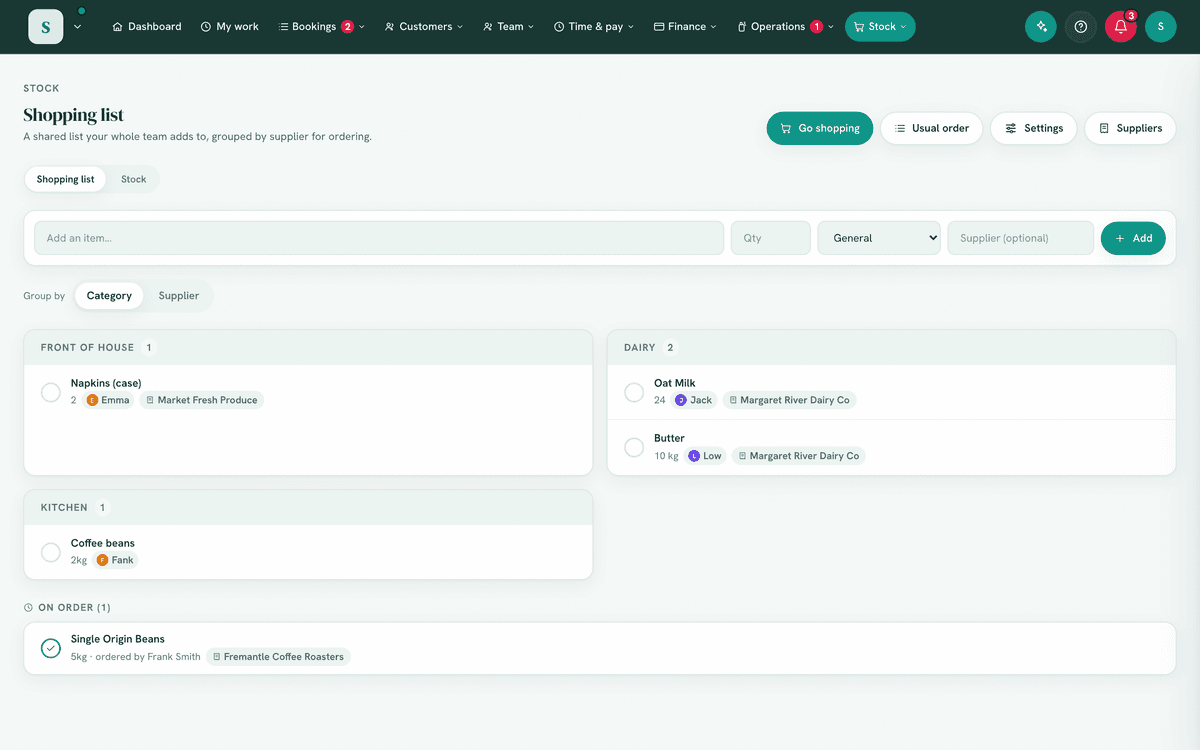
- On To order: Usual order, More (Buy again and Settings) and, when you buy in person, Go shopping.
- The list of items, each with quantity, category and optional supplier, and a status (needed → ordered → got).
- An Add item field (with qty, category, supplier).
- A line with Review and Add N to list when stock tracking flags items below their level.
- Grouped by supplier, each supplier from your book has Purchase order (when you can raise one) and Order online (when they have a website).
- On the Stock list: Count stock, Enter a docket, More (Kits, Stock value, Export CSV, Import CSV and Settings) and Add item.
- Go shopping, a full-screen, phone-first version of the list for the aisles: big rows you tap to tick, live progress, and a Print button for a paper checklist.
6. Turning it on
Switch it on in Settings, the Modules tab, under Stock (available on both plans). If you chose a relevant business type at sign-up, you'll start with a few example items.
7. Step-by-step tasks
7a. Add and order items
- Type an item in Add item, with a quantity, category and (optionally) supplier. Tap the Supplier box and your suppliers drop down: pick one, type a few letters to narrow the list, type a name nobody has used before, or leave it empty. A brand new name also offers Add to your supplier book, so next time it is in the list and can hold their website, phone, ABN and account reference. Then add it. Adding something that's already on the list folds into the one line, summing the quantity when the units match ("1kg" then "2kg" becomes "3kg") and joining them as text when they don't ("1 bag + 2kg").
- The round tick on the left of a line marks it bought, and it moves to the Bought section. That is the only control most people ever need.
- If you ring a supplier and wait for a delivery, On order on the line moves it to an On order section in between, so nobody orders the same thing twice. Each line says when it was ordered and by whom (Ordered yesterday by Frank), so a late delivery stands out. Tick it off when it arrives. If you just go to the shops instead, turn We order ahead and wait for delivery off in More → Settings and the On order step disappears. Anything already on order stays on screen either way. The list stays in sync for everyone.
7b. Add low stock to the list
On the Stock list, one line above the stock says what is at or below its reorder level: up to three items by name (press one to open it), more as a count, with how many are already on your list to order. Show them narrows the stock to the low items, and Reorder opens the table to order from.
Reorder lists every low item, grouped by its main supplier, with what is on hand, the level it is reordered at, how many to order and whether it is already On the list or on order (with the purchase order number). The amount starts at the suggestion (below) and can be changed. Items not on the list, and not covered by what is already on order, start ticked.
- Add N to your list to order puts the ticked items on the list at the amounts shown. An item already on the list cannot go on twice.
- Order from a supplier does the same for that supplier's ticked items, then opens a new purchase order for them with their lines from the list on it (for whoever can raise purchase orders, with Invoicing and purchase orders on).
- An amount must be more than nought and at most 100,000, to three decimal places.
- Tick all, Untick all and the tick beside a supplier change many at once.
On To order, the line about low items has Review, which opens the same table, and Add N to list, which adds them all at their suggested amounts.
- When stock tracking flags items below their level, choose Reorder (or Add N to list on To order).
- They drop into your list to order. With Add low stock to the list for me switched on (the default, in More → Settings), this also happens automatically the moment an item drops to its reorder level, however it got there: a change on Stock, a part used on a job, a recipe recorded, or a count.
- The line suggests the item's Reorder qty. When it has none, it suggests enough to bring the item to twice its reorder level, so the delivery takes it off low rather than leaving it at the level.
- Typing an item by hand whose name matches a stock item links the two, so it can be received into stock once bought.
7b-ii. Receive bought items into stock
- When a stock-linked item is marked got, a Receive to stock button appears on it.
- It asks how many arrived, filled in with the number on the list line, in the unit the item is counted in. Change it to what actually came: a short delivery, or 2 boxes on the list when stock is counted in each.
- Receive adds that to the item's on-hand count and takes the line off the list. Managers can always do this; staff can when Receive into stock is switched on in More → Settings.
- A line on a purchase order shows On PO-0012. Receiving it here is received against that order, so receiving the order later offers only what is still to come, and nothing goes into stock twice.
7a-ii. Change an item after you have added it
Every line still on the list has Change on it, whether it is needed or already ordered. That opens the item, where you can set:
- Item, the name. Renaming onto something already on the list is refused, rather than quietly making two lines of one thing.
- How many, free text so you can write it however you say it (
3,2 kg,a few trays). A plain number gets a plus and a minus beside it; anything wordier is left exactly as you typed it. - Group and Supplier, the same lists the add box offers.
- Note, for the brand, the size, which aisle, anything worth saying. It shows under the name on the list and in Go shopping.
- Urgent, which pins the item to the top of its group and flags it, for what cannot wait for the next order.
Remove from the list is at the bottom, on its own, away from the fields.
7a-iii. Nothing is deleted by accident
Removing an item no longer asks you to confirm. It removes it and offers Undo in the message at the bottom of the screen, which is the protection that actually works: a confirm box on every delete gets dismissed without reading, and then the item is gone with nothing left to say what it was. Undo puts it back with its quantity, group, supplier and note.
7a-iv. It tells you what is already on the list
As you type into the add box, anything matching that is already on the list appears in amber above the suggestions, with how many are already down. Tap it to open that line instead of adding a second one. Adding it anyway is still safe: the quantities fold into the one line rather than stacking duplicates.
7b-ii-b. The Bought list, and clearing it
Items you tick off drop into Bought at the bottom of the list and stay there until somebody clears them. Nothing removes them on a timer, so the section is a record of what has been bought since the last clear, not just today's shop.
- Put back on a row returns that item to the list, for the thing ticked off by mistake or used up again straight away. The green tick does the same.
- Bought folds itself once it is longer than a glance, so the live list stays where you can reach it. Tap the heading to open or close it. The folded line says how many there are and how many are still to be received into stock.
- Newest first, so the shop you just did is at the top.
- Clear N bought, beside the Bought heading, removes every bought item for good. Use it after the shopping is put away, or whenever the section gets long.
- The x on a row removes just that one, and the green tick puts it back on the list.
- Only the 200 most recent bought items are shown at once. Past that the section says so, and the count and Clear still cover every one of them.
- Clearing does not undo anything: hours, stock counts and expenses are recorded where they belong, and the list is only the list.
7b-ii-c. Buy it again
Every item you tick off is remembered, on the list or at a kiosk tablet, so the things this business buys are never lost when the Bought section is cleared.
Buy again appears under More at the top as soon as anybody ticks something off, and stays from then on.
- Buy again opens everything you have bought before, newest first, with how many times and when you last bought each one. Switch to Most bought to see the regulars instead.
- Add puts one back on the list. The button at the top adds the most recent dozen in one go. Anything already on the list is left out, so nothing is ever added twice.
- Usual order on a line promotes it into your weekly staples, so next time it arrives with the rest of the order.
- The x stops an item being offered again, for the thing bought once by mistake. Managers only, since the history is shared.
As you type. The add box offers what you already buy after the first letter or two, marked usual order, bought before or stock. Tapping one fills in the quantity, category and supplier too, so a weekly item is two taps rather than four fields. Anything already on the list is never offered.
7b-ii-d. Enter a supplier's docket
Parts bought over the counter come with a docket. Enter a docket on the Stock page records it in one go, one row a line: the part number, a description, how many were supplied, how many are back ordered, what you paid each (ex GST), the RRP each (inc GST) and what it is for: Stock, or a job it was bought for. Type the supplier (your supplier book fills in as you type; a name not in it is added when the docket is saved), the docket number and the date.
A part number you already use finds your part as soon as you leave the box (that supplier's number for it first, then your own), and says Your part: with its name; Not this part lets you choose again. A number you have not used is added to your parts list when you save, unless you untick Add to your parts list; untick it and the line is recorded on the order only.
Read a photo of the docket reads the lines, the supplier, the docket number and the date from a photo or PDF, and matches each line to your parts. Check every line against the docket before you save: what it read is only a draft. The photo is kept with the order. An iPhone's HEIC photo is read too, and kept as a JPEG so it opens on any computer. Reading a photo uses your AI allowance.
The docket's own total checks the lines. When the photo shows a total, the bar at the bottom says whether the lines agree with it, as you correct them: Matches the docket's total of $253.39 inc GST, or Does not match with what the lines come to, so a quantity or price read wrongly is caught before it becomes a part's cost. Freight, delivery and discount lines are counted in. A quotation, or a docket that totals everything ordered, matches counting what is back ordered. A line still without a quantity or price is asked for first. A photo whose lines do not check out is read a second time automatically, more carefully, before you see it; that is still one use of your allowance.
Take a photo uses the camera on the device you are working on: a laptop's webcam, a document camera, or a phone's back camera. Hold the docket flat and square to the camera, press Take photo, then Use this photo to read it, or Retake. With more than one camera, choose which at the top. The first time, your browser asks to use the camera; if it was refused, allow the camera for this site in the browser's settings.
Save docket saves it as a purchase order that has arrived, numbered like any other. What was supplied goes into stock, or onto the job as a part bought for it (nothing comes off the shelf, and it is charged the way the part sells). What is back ordered stays on the order, so the part shows as on order until it arrives and is received the usual way. Each part's cost becomes what you paid, its RRP is kept, a part that sells at its RRP follows the new RRP, and that supplier's last cost is kept. A part added from a docket with an RRP sells at its RRP. Saving again after a timeout saves it once.
Entering a docket needs permission to edit stock and to raise purchase orders, with Invoicing on. Putting a line on a job also needs the permission to edit jobs.
7b-iii. Stock items: archive & restore
Archiving a stock item hides it (keeping its full movement history); Show archived items at the bottom of the Stock list lists them with a Restore button. Each movement in an item's history shows who recorded it. Archiving an item that still has stock says how much first, because that stock then leaves the list and every count.
Changing an item's unit asks first when it has stock: the numbers stay as they are and are read in the new unit, so 194.5 L changed to ml reads as 194.5 ml. Count it again after the change if that is not right.
7b-iv. Record what happens to stock
- On Stock, open the item and use Record a change.
- Choose what happened:
- Add to stock: Received, Returned by a customer.
- Take off stock: Used, Sold (on resale items), Wastage, Damaged, Expired, Lost or stolen, Written off, Returned to supplier.
- Correct the count: Count what is there, Adjust (+ or −).
- Enter the quantity. Each type already says which way stock moves, so enter a number above 0. An Adjust can go either way (for example -2) and needs a reason in the note.
- Add a note if it helps (up to 200 characters), then Apply.
Every change becomes a line in the item's History, with who recorded it and when. Show more and Show older reach every line, and Download saves the whole history as a spreadsheet. If an item had stock before anything was recorded, the history ends with Already in stock when records began, so the lines add up to the number at the top.
Stock never goes below 0. If more is used than your stock showed, it stops at 0 and the history line says how many were taken off and how many were in stock, so the difference is on record for your next count.
Equipment is not stock. Tools, vehicles and anything with a serial number that the business keeps belong in Equipment, which records lost or stolen gear and how and when it was disposed of. Stock is for things used up or sold.
7b-v. Count your stock (stocktake)
One item: open it, choose Count what is there, and type the number on the shelf. It is compared with the figure the item showed when you opened it.
Everything, on one sheet: choose Count stock at the top of Stock.
- Every item is listed by category with what is on record. Search by name, SKU, location or category, or scan a barcode into the search box and that item is ready to type into.
- Type what is on the shelf. Enter moves to the next item (or back to the search after a scan). Each item shows the difference as you type, and a count that is not a number is marked in red.
- Not counted yet and Counted show what is left and what is done. Print sheet prints a blank sheet to count on paper.
- Save count first lists every item that differs, with the difference at cost when the items have a cost price, then saves. Items you did not count stay as they are.
Counting while you trade. What is on record refreshes every minute, and each item is compared with the figure shown at the moment its count was typed (it then reads On record when counted). Only the difference is applied, so anything sold or used after you counted an item is kept. Counted 47 while the sheet said 50, with 2 sold since, leaves 45.
Nothing typed is lost. Typed counts are kept in that browser until the count is saved, so after a refresh or a closed tab, Count stock offers to carry on. They are not shared with other devices: two people can count different areas on their own devices and each save their own.
What is recorded. Every counted item gets a line in its history (Stock count. Counted 47), even when it matched, so the history shows when it was last counted, and the Activity log shows Counted stock. Saving again after a slow connection records each item once. If some items cannot be saved, the rest are, and the ones that were not are listed and stay on the sheet to save again. Items the count takes to their reorder level join the shopping list.
Counting needs Manage stock & ordering. Up to 2,000 items are saved at once.
7b-vi. Import and export stock
- More → Import CSV takes a spreadsheet saved as CSV, with a header row. Columns,
in any order:
name(needed),unit,category,kind(consumableorsaleable),sku,supplier,location,on_hand_qty(orquantity),reorder_level,reorder_qty,cost_price,sale_price,notes. - Numbers can be written the way a spreadsheet writes them:
1,500and$1,200.50both work. - Before anything is saved you see what will happen: how many items will be added, which suppliers will be added to your supplier book, and every line that will be left out, with its line number and why.
- A line that can't be read is left out rather than saved as 0. Fix that line and import the file again: lines already imported are left out as already in your stock.
- Import adds new items, up to 1,000 lines per file. Change items you already have on screen.
- Each item's quantity on hand becomes the first line of its history.
- More → Export CSV downloads every active item. Cost prices are included only for people who can see them.
What your stock is worth. More → Stock value (for whoever manages stock) shows what is on hand at cost and at its price, by category, worked out from the list as it stands. With parts priced in Stock, both are ex GST for a GST-registered business and the price is what a job would charge. Only items that are counted and have stock on hand are in it; an item with no cost, or no price, is left out of that total and the screen says how many. Download CSV gives every item.
SKU or barcode. Put a product's barcode in its SKU or barcode field and the search box finds it, so a USB barcode scanner, which types like a keyboard, brings up the item. Each code belongs to one item.
Prices include any GST. Enter the cost price and the sale price including any GST you pay or charge. Invoice lines include GST, so the price a job suggests from cost plus markup is only right when the cost includes it too.
7b-vii. Part numbers, bins and barcodes
For a business that orders parts. In Settings → Modules, under Stock & ordering, switch on Track parts in detail. When the module is off, the same switch turns it on as well, since parts live there. If you renamed the list (in More → Settings, What you call the list), Modules shows it under that name. Automotive and Trades businesses start with it on; everyone else starts with it off and sees none of this. It needs Edit business settings & branding to reach Modules and Add / edit shopping items to change, and turning it off keeps every detail for when it is turned on again. More → Settings, under Parts, says whether it is on and links to it.
With it on, a stock item carries:
- Part number: the number you know the part by, usually your main supplier's. Each active part has its own; a number already on another part is refused with that part's name.
- Brand and Bin (where it is kept; the same field other businesses call Location).
- Suppliers: every supplier the part comes from, each with their own part number for it (leave it blank when it is the same as yours) and the last cost they charged. Add a supplier adds a line; + Add a supplier… in a line's list adds a new one to your supplier book. One is the main supplier, which the shopping list and purchase orders use; Make main supplier moves it.
- Barcodes: scan the box with a barcode scanner, or type the number and press Enter. A part can have several (different brands, different boxes). A barcode already on another part is refused with that part's name.
- Your own code, if you keep one, and GST-free, for a part sold without GST. A GST-free part goes onto the invoice as a GST-free line.
A new part starts as Saleable, since a workshop sells most of what it stocks. Choose Consumable under Type for something used up in the workshop. Without parts in detail, a new stock item starts as Consumable.
Pricing a part. With parts in detail on, whoever manages stock prices each part in one box on the part:
- Cost, ex and inc GST side by side; type either and the other fills in. A GST-free part, or a business not registered for GST, shows one figure.
- Multiplier: the part sells at its cost × this number (1.65 is 65% on cost). Leave it empty to follow your settings; the line under the box says which multiplier applies and where it comes from.
- RRP: the part sells at the supplier's recommended retail price, ex and inc GST side by side. A part bought for a job and charged at its RRP is set to this, and its price then follows the RRP on each new docket.
- Fixed price: a sell price typed in (ex or inc GST) when the formula does not suit. A fixed price always wins.
- One line says what it comes to, such as Cost $100.00 ex × 1.65 = $165.00 ex, $181.50 inc GST. That is the price a job suggests when the part is used, and it can still be changed on the job.
The usual multiplier, a multiplier per category, and Re-price parts when their
cost changes are in More → Settings under Parts. Re-pricing is on: a part
on a multiplier sells at its new cost × the multiplier, so a part bought at $108
instead of $100 sells for $178.20 ex instead of $165.00. Turned off, a new cost
leaves the price where it was, and that price becomes the part's fixed price. With
parts in detail on, Jobs settings no longer has its own markup box; it points
here. An import can set each part's multiplier with a multiplier column (1.65).
Multipliers by cost. In the same settings, By cost sets a multiplier by what a part costs ex GST, for every part or for one category: for example up to $20 × 2, up to $100 × 1.6, and above that × 1.3. Leave the last line's cost empty for "and above". A part with no multiplier of its own follows, in order: its category's multipliers by cost, its category's one multiplier, the multipliers by cost for every part, then your usual one. Without an "and above" line, a part costing more than the last limit passes on to the next. Press Save multipliers by cost.
Trade price levels. Up to three, in the same settings: a name and either Cost × a multiplier or a % off the usual price. Choose a customer's level on their record (Customers, Price level), and parts added to their jobs from then on are charged at it. A part can carry its own price for a level, under Trade prices on the part; a level with no price there follows its rule. A level needs something to work from: a multiplier needs the part's cost. Press Save levels. A customer's usual discount still comes off as well when discounts are on.
More on a part. Under the price, a part can also have:
- Count how many are on hand, on for everything to start. Turn it off for something used by eye, such as bulk oil or rags: it never runs low, it is left out of a stocktake and Stock value, and nothing comes off the shelf when it is used on a job.
- Each one used on a job needs its serial number (parts in detail): the job asks for one serial number for each, and they print on the invoice line.
- Your own details, such as a tyre's width, profile and wheel size, once they are named in the settings under Part details (up to six). They are searched with the part's number and name.
- Comment on the invoice, printed with the part on the customer's invoice, and Comment on the job card, shown with it on the job for the team only (Jobs on).
Labour codes. With Jobs on, Type offers Labour: work sold at a set price, such as a service's labour, with a Usual quantity (in hours) filled in when it is added to a job. A labour code is never counted, never runs low, and on an invoice it keeps its own line, even when parts are one total.
The parts table. With parts in detail on, the Stock list is a table (its Cost and Sell follow the Inc GST / Ex GST choice beside the search, the same one Jobs uses; see Jobs, Show amounts inc or ex GST): Part no., Description, Bin, Supplier and On hand, plus Cost and Sell for whoever manages stock. Press a heading to sort by it, and again to reverse it. While you search, the best match comes first: a part number or barcode exactly, then a number starting with what you typed, then a name. Choose a category beside the search to see only that one. Fifty parts show at a time, with Previous and Next.
Finding a part. The search on the Stock list, the parts rows on a job and Use a part on My Work find a part by its number, any supplier's number for it, any of its barcodes, its brand or its name. A part with none on hand is still found. On a job, the best match comes first and each result shows the part number, bin, how many are on hand and how many are on order. A barcode scanner types the code and presses Enter, which picks the one part with exactly that number or barcode; when two parts share it, both are listed for you to choose.
On order. A part on a purchase order that has gone to the supplier and not all arrived shows how many are on order, with the order number, on the Stock list and on a job.
Ordering and receiving parts. On a new purchase order, Find a part puts a part on the order under that supplier's own number, at what they last charged. When the order is received into stock, each part's cost becomes the price paid and the supplier's last cost is kept on the part. A line that is not one of your parts yet can be added with Add to your parts. See Invoicing, Raise & approve purchase orders.
On a job and the invoice. A part fitted to a job keeps its number, so the job and the invoice line read like M12-18AC · Brake pad set.
Importing parts. With parts in detail on, an import also reads part_number,
brand, bin (or location), barcodes (several separated by spaces),
gst_free (yes or no) and supplier_part_number (the main supplier's own number).
A line whose part number is already on a part updates that part instead of
being left out, and a line naming a part that has no number yet gives it one.
Only what the line says is changed: an empty cell leaves that value as it is, and
the quantity on hand is never changed by an update (use Count). A line naming
a part that already has a different number is listed and left out. The preview
says how many parts will be added and how many updated. More → Export CSV writes the
same columns, so a file can be exported, changed and imported back.
7b-viii. Kits of parts and labour
A kit is a set of parts and labour codes added to a job in one go, such as a log book service's oil, filter, sump washer and labour. With Jobs on, open More → Kits on the Stock list.
- New kit, then name it.
- Type in Add a part or labour code and choose it, or press Type a line for something that is not in your parts list.
- Set how many of each. Leave Price each empty to charge the part's own price when the kit is added (at the customer's trade level when they have one); a typed line needs a price.
- Save kit. Remove kit takes it away; jobs it was added to keep their parts.
On a job card, Add a kit beside the parts adds every line, in order, the same way each would be added on its own: parts off the shelf take stock, a labour code takes none. Every line is priced first, so a kit with a line that has no price is refused, with the reason, before anything is added. A part that needs serial numbers can't be in a kit; add it to the job on its own. Keeping kits needs Add / edit shopping items; anyone who can record parts on a job can add one.
7c. Go shopping (at the shops)
Go shopping shows while We buy in person is on in More → Settings. It starts on for every business except automotive, whose parts are delivered. Off, the button and the phone's home-screen shortcut for it go, and nothing on the list changes.
- Tap Go shopping for a full-screen list built for one hand in a shop: big rows, tap anywhere on a row to drop it in the trolley, tap it again to put it back.
- If the list has more than one supplier, it asks where you are going first. Pick a shop and you get only their items, grouped by category. The trolley, the progress bar and the printed sheet all follow that choice, so nothing on screen is about a shop you are not standing in. Choose Everything for the whole list, still kept apart by supplier.
- Finish a shop and it says so, with a one-tap button through to whatever is still to get at each of the others. Tap the supplier name at the top any time to switch.
- Print gives you a pen-and-paper checklist of whatever the screen is showing, headed with the supplier it is for.
- Two people can shop together: the list refreshes every few seconds, so you each see the other's ticks.
- On a phone, use Add to home screen and it opens full-screen straight into this view.
7d. Manage suppliers
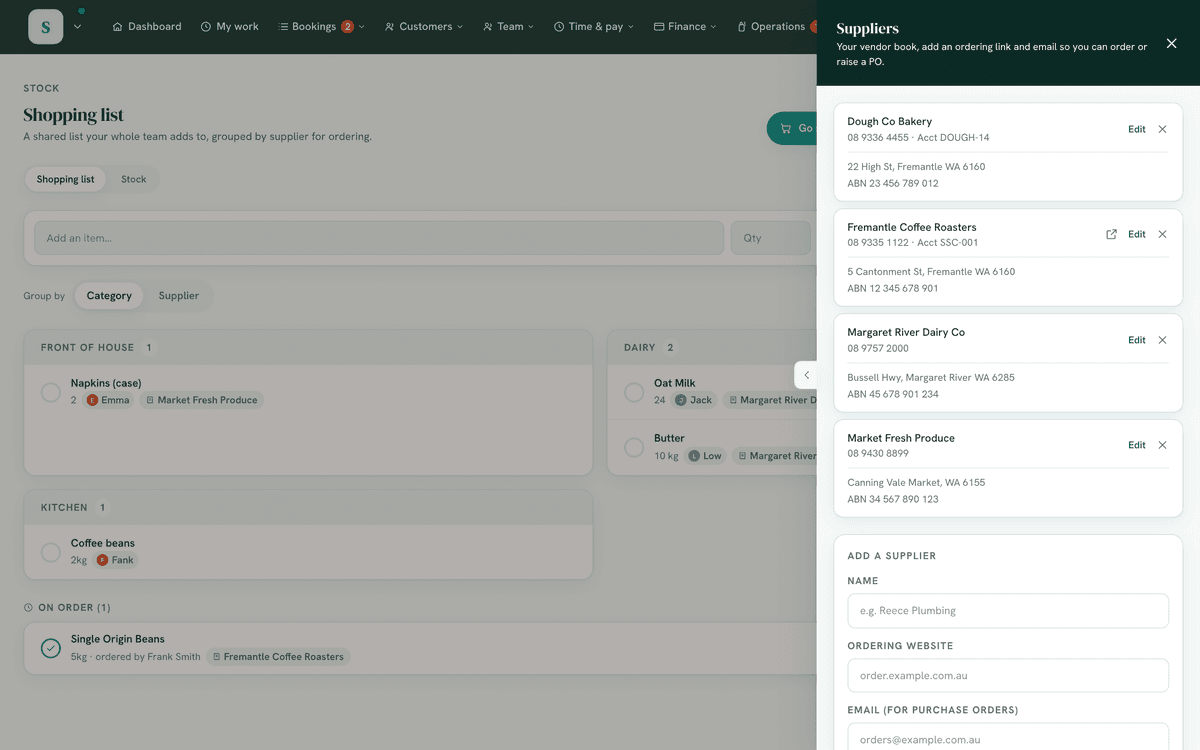
Stock → Suppliers is your supplier book. Each supplier shows how many lines on the list to order name them and how many items they supply. Search by name, email, phone, account number or notes.
- Add supplier, then fill in their ordering website, email for purchase orders, phone, ABN, address, account number and ordering notes, and Add supplier.
- Open a supplier for New purchase order, Order online, Email and Call, and to change their details. A new purchase order opens with that supplier chosen, and their lines from the list on it when they have some.
- Give items a supplier so the list groups by where to order, and so Go shopping can offer one trip per shop.
A list line names its supplier as typed, and counts for the supplier of that name in your book, ignoring capitals. Closing a supplier with unsaved changes asks first.
Deleting a supplier asks first and says what goes: items stop listing them as a supplier, along with the part numbers and last costs recorded for them there. Purchase orders and the list keep the name.
Who can change the book: Manage stock & ordering, and staff with Edit the supplier book switched on. Everyone else with View stock & ordering sees the details without changing them.
7e. Order from the list
Group the list by supplier and press Purchase order on a supplier: a new purchase order opens with that supplier chosen and their lines from the list already on it, ready to check and send. Lines already on an open order are left out, and the order says how many. Stock → Purchase orders holds every order, the same list as Finance → Invoicing → Purchase orders; see Invoicing for sending and receiving them. The button shows to whoever can raise a purchase order, with Invoicing on and purchase orders switched on.
You can also add a supplier while editing a stock item: choose + Add a supplier… under Supplier, type the name and, optionally, the email for orders. A purchase order can only be emailed to a supplier with an email address. An email that isn't a real address is refused, with the reason under the field.
8. Examples
- Beginner (café): add Full cream milk · 6×2L · Kitchen and tick it off once ordered.
- Real-world (restaurant): group the list by supplier so each order is one glance; store Bidfood with the account ref and cut-off time.
- Advanced: use stock levels so the system surfaces low items and you bulk-add them to the next order.
9. Reports & exports
The live list (grouped by category/supplier) and the suppliers directory are the record. Items to order also show as the dashboard Shopping to order shortcut. On the Stock list, More → Export CSV downloads every active item, and each item's History downloads every change to it, oldest first.
Not available in Stock yet: converting between units (track the smallest unit you use, such as litres from a 205 L drum), stock at more than one location, batch numbers, reserving stock for a job before it is used, and stock coming off with an invoice that has no job. Receiving a purchase order adds its lines for stock items to stock (see Invoicing).
10. Common mistakes
- No supplier on items, then the list can't group by where to order, and Go shopping has no shops to offer you.
- The same supplier spelled two ways, then one order looks like two. Pick them from the Supplier box rather than retyping the name.
- Not marking items got, the list grows stale; tick them off on arrival.
- Duplicate items, search the list before adding.
11. Troubleshooting
| Problem | Fix |
|---|---|
| Low-stock suggestions don't appear | Set stock levels on items so the system knows what "low" is. |
| The dashboard shortcut count looks wrong | It counts items still needed; mark ordered/got to clear them. |
| The Bought list has got very long | Nothing clears it on a timer. Use Clear N bought beside the Bought heading. Nothing is lost: it is all in Buy again. |
| I deleted an item by mistake | Press Undo in the message at the bottom of the screen. If it has gone, add it again from Buy again. |
| Two lines of the same thing | Rename one with Change, or remove it. Typing a name already on the list folds into the one line, so this only happens if the two are spelled differently. |
| An urgent item is not at the top | Urgent pins it to the top of its own group. Switch Group by to see the whole list in one order. |
| An item I buy is not offered in Buy again | It appears once it has been ticked off the list at least once. Items bought before this feature existed are not there. |
| Something wrong is offered every time | Open Buy again and press the x on that line. Managers only. |
| Can't add or edit | You need Manage stock & ordering, or, for staff with view access, a manager has that staff permission switched off in More → Settings. |
| A count came out different from the number I typed | Something was sold or used after you counted that item. Only the difference from what the screen showed when you typed the count is applied, so those sales are kept. The history line says what moved. |
| My typed counts are gone | They are kept only in the browser they were typed in, until the count is saved. On another device, start the count there. |
| A low stock line suggests more than I order | With no Reorder qty on the item, it suggests enough to reach twice the reorder level. Set Reorder qty on the item to the amount you order. |
| Receive to stock asks how many | It asks what actually arrived, in the unit the item is counted in. The number on the list line is filled in to start. |
| An item's history doesn't add up to what is on hand | Open Show more until the end: Already in stock when records began shows stock that was there before anything was recorded. |
| Apply stays grey on an adjustment | An adjustment needs a reason. Type it in the note. |
| A line was left out of my import | The preview and the summary name each one with its line number and why. Fix the line and import the file again. |
| "The SKU is already used by …" | Another active item has that SKU or barcode. Each code belongs to one item. |
12. Error messages
Adds and status changes confirm inline. The list syncs across devices, so another staff member's change may appear as you work, refresh if needed.
| Message | What it means |
|---|---|
| Enter how many, more than 0. | Received, Used and the other types already say which way stock moves. |
| Say why you are adjusting it. | An adjustment needs a reason in the note. |
| A count can't be below zero. | Type the number on the shelf, 0 or more. |
| Not enough in stock, so it is now at 0. | More was taken off than your stock showed. The history line records the difference. |
| Cost price can't be below zero. | Prices are 0 or more. |
| The name can be up to 120 characters. | Shorten the name. Other fields have their own limits. |
| Choose a supplier from your supplier book. | The supplier picked is not one of yours. |
| Enter how many arrived, more than 0. | Receive to stock needs the quantity that came. |
| Count at least one item first. | Type a count against an item before saving. |
| The count has the same item twice. | Each item can be counted once in a save. Open the count again. |
| The count is missing what was on record. Open the count again and save it. | The figure each count is compared with did not arrive. Close the sheet and open it again: your typed counts are kept. |
| You don't have permission to count stock. | Counting needs Manage stock & ordering. |
| This item's stock record needs saving once before stock can move. Open it in the Stock list, press Save, then try again. | The item was set up in a form the app no longer accepts, so nothing can take it off the shelf, count it or receive it. Saving it once from the Stock list puts it right. Nothing else about it changes. |
Related: Recipes & menu