
Module · Licences & certifications
Where to find it in the app
- Use it: Team → Licences & certificates
- Turn it on/off: your business name (top-left) → Settings → Modules → Team → Licences & certificates
Plan: Business · Module group: Your team · Navigation:
Team → Licences & certificates
1. Overview
Purpose. Track your staff's licences and certifications, First Aid, Working With Children Check (WWCC), White Card, electrical licences and anything else, and get warned before they expire so your team stays compliant.
2. When to use it
- For any business where staff must hold current tickets/licences.
- To prove, at audit, that certifications are current.
3. Required permissions
- View licences & certs (
certs.view). - Add / edit licences & certs (
certs.manage). - None to see and renew your own licences from My Work (7e).
4. Navigation path
Team → Licences & certificates
5. What you'll see
- A list of staff certifications, each with its type, the holder and the expiry date, flagged when expired or expiring soon.
- A Manage types button to maintain your own list of certification types.
- Add/edit controls (for managers).
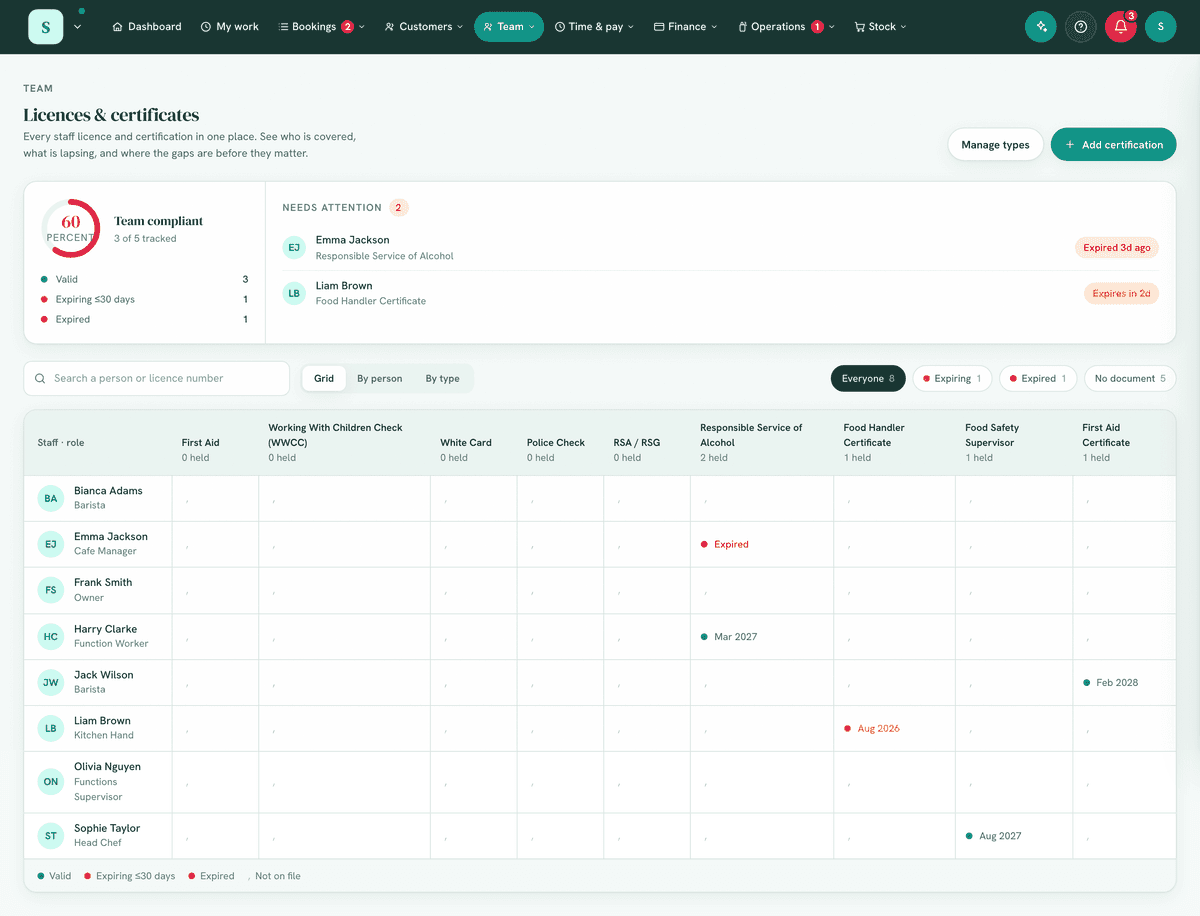
6. Turning it on
Settings → Modules → Your team → Licences & certificates.
7. Step-by-step tasks
7a. Record a certification
- Select to add a certification.
- Choose the staff member and the type (e.g. First Aid; type your own, such as Electrical Licence).
- Enter the issued date and the expiry date (and any reference/number if prompted). Both dates are shown on the record, so you can see when a ticket was granted as well as when it lapses.
- Optionally attach the proof document (the certificate or ticket itself). It is held in private storage and opened in-app through a short-lived signed link. A record with no file carries a No document badge, and you can filter the list to No document to find certs still missing their proof.
- Save.
7b. Renew a certification
When a ticket is renewed, don't overwrite the old record. On the certification's drawer choose Renew and enter the new dates (and proof). This records a new certification and marks the old one superseded, keeping it as history rather than losing the previous expiry and proof.
Superseded records drop out of the live list and every expiry, health and reminder signal, so nothing chases an out-of-date ticket.
The old records stay available under Show previous on that person's type, tagged Superseded, for your audit trail.
From the notice that a team member renewed their own (7e), or from a licence opened on My Work, Open in Licences & certificates opens that licence's drawer straight away.
7c. Manage certification types
- Choose Manage types.
- Add the types your business uses (e.g. WWCC, White Card, RSA).
7d. Stay ahead of expiries
- Certifications expiring within 30 days and those already expired are flagged here, surfaced on the dashboard (Needs attention) and Business health, and included in the Reminders & digests module.
7e. Renew your own licence from My Work
Everyone sees their own licences on My work under My licences, soonest expiry first. One that has expired, or expires within 30 days, also shows at the top under Needs you with a Renew button.
- Press the licence (or Renew). It opens with its number, issue and expiry dates, and View certificate when one is attached.
- Under Renew it, add a photo or PDF of the new certificate, the new expiry date and, if you have them, the issue date and number.
- Press Save renewal.
The new certificate replaces the old one, which is kept in the history, and the record says it was uploaded by you from My Work. Everyone who can add or edit licences is told, with a link to it, so they can check the certificate.
- The certificate is required, and a licence that had an expiry date needs a new one in the future. You can only renew your own.
- Managers and anyone who can view every licence also get Open in Licences & certificates, which opens it on the full page.
- Certificate files are private: they open through a short-lived link after a check, and nobody can reach them straight from storage.
8. Examples
- Beginner (café): record each staff member's Food Handling certificate and its expiry.
- Real-world (clinic): track First Aid and WWCC for every practitioner; renew before the 30-day flag turns red.
- Advanced (trades): maintain a custom list (White Card, Electrical Licence, EWP) and use the digest to chase renewals across the crew.
9. Reports & exports
Expiry status across the team is the core report; expiring/expired counts feed the dashboard, Business health and the reminders digest.
10. Common mistakes
- No expiry date, without it, nothing can be flagged. Always record the expiry.
- Free-typing the same type differently (e.g. "First Aid" vs "First-aid"), use the managed types list for consistency.
- Assuming staff will remember, let the digest do the chasing.
11. Troubleshooting
| Problem | Fix |
|---|---|
| Nothing is flagged | Check the expiry dates are entered and correct. |
| A renewal still shows expired | Edit the record and update the expiry date. |
| Can't add a certification | You need Add / edit licences & certs. |
| A team member says they can't fix their expired licence | They can, from My work → My licences: press it, add the new certificate and its expiry date, and Save renewal (7e). |
| "That expiry date has already passed" | A renewal needs the new certificate's expiry date, which must be after today. |
| Expiries not in my digest | Enable Reminders & digests and opt into certification reminders. |
12. Error messages
Adds/edits confirm inline. There are no blocking error dialogs; the value of the module is the expiry flagging, so always set the date.
Related: Reminders & digests · Team comms · Documents