Module · Team comms
Where to find it in the app
- Use it: Team → Announcements & chat
- Turn it on/off: your business name (top-left) → Settings → Modules → Team → Announcements & chat
Plan: Solo and Business · Module group: Your team · Navigation:
Team → Announcements & chat(with Team chat and Handover beside it)
1. Overview
Purpose. Keep team communication in one place instead of scattered group chats. Team comms has three parts:
- Announcements, noticeboard posts that can ask for an acknowledgement, with who has read each one.
- Team chat, channels for everyday conversation, updating as people write.
- Handover, dated notes from one shift to the next.
All three can carry photos, the way a phone messaging app does, and anyone can react to a notice, message or note with a thumbs up, a heart and the like.
A notice or a chat channel is for everyone on the team unless you choose otherwise: it can be for chosen people, roles or add-ons, or a department (front of house, the kitchen, the workshop). Nobody else sees it.
2. When to use it
- A must-read notice you want acknowledged: a policy, a roster change, a price rise.
- Everyday conversation, by topic.
- Passing information from one shift to the next.
3. Required permissions
- Read announcements (
comms.view): read and acknowledge notices, use Team chat and Handover, react to all three, and delete your own messages and notes. - Post announcements (
comms.post): post notices, pin and delete any notice, set Hide notices older than, and delete anybody's chat message or handover note. Owners, managers and supervisors have it by default. They also see every notice and every chat channel, including ones for chosen people, so they can post in them and keep them tidy. - Edit business settings & branding (
settings.manage): Comms settings, which switch Team chat, Handover, photos and reactions on or off, choose the reactions on offer, and manage the chat channels.
4. Navigation path
Team → Announcements & chat, with Team chat and Handover as tabs. The
bell takes you straight to the tab, and the chat channel, a line is about.
5. What you'll see
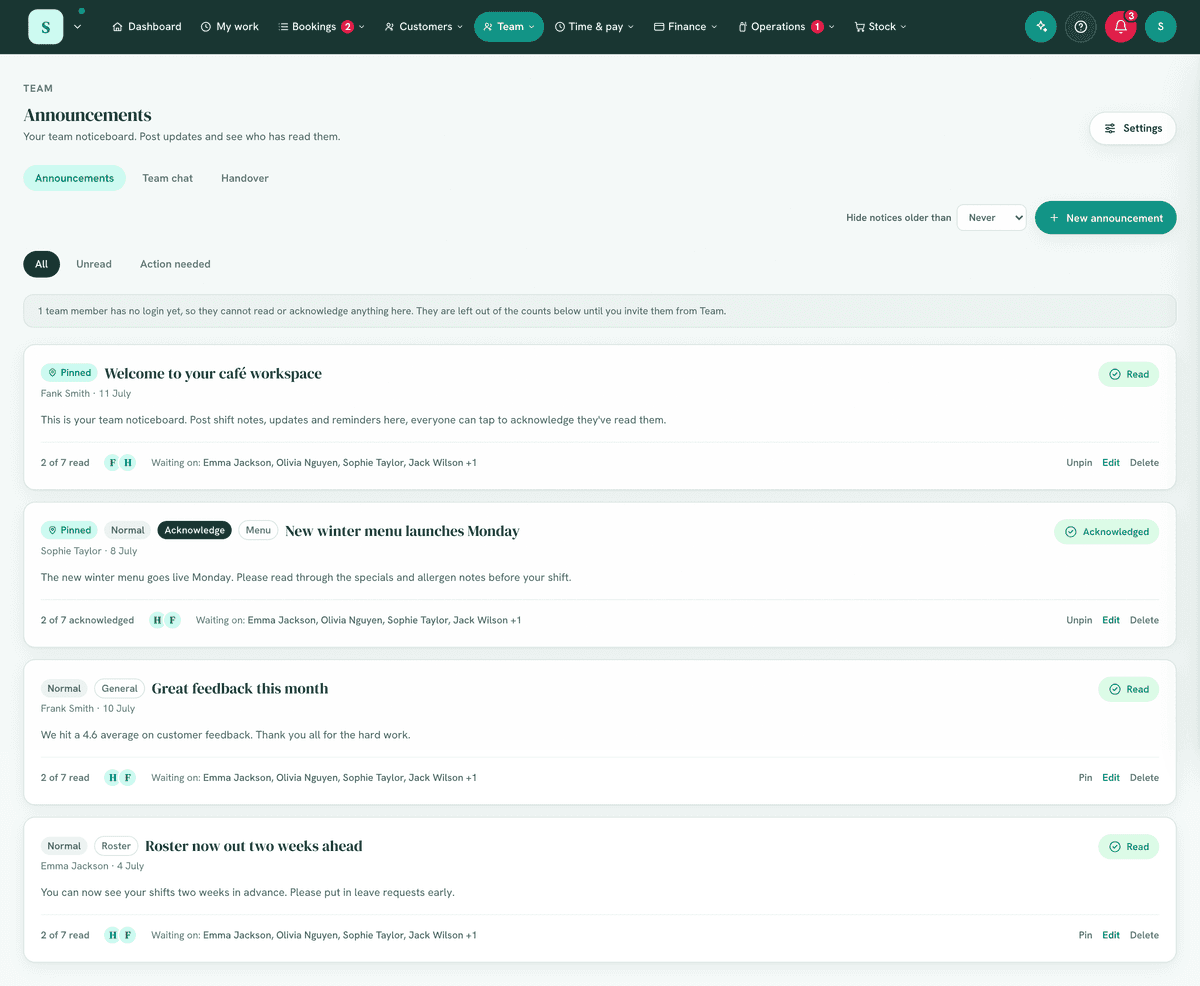
- Announcements: the notices, newest first with pinned ones on top. Each says who posted it and when, and underneath, how many of the team have read or acknowledged it.
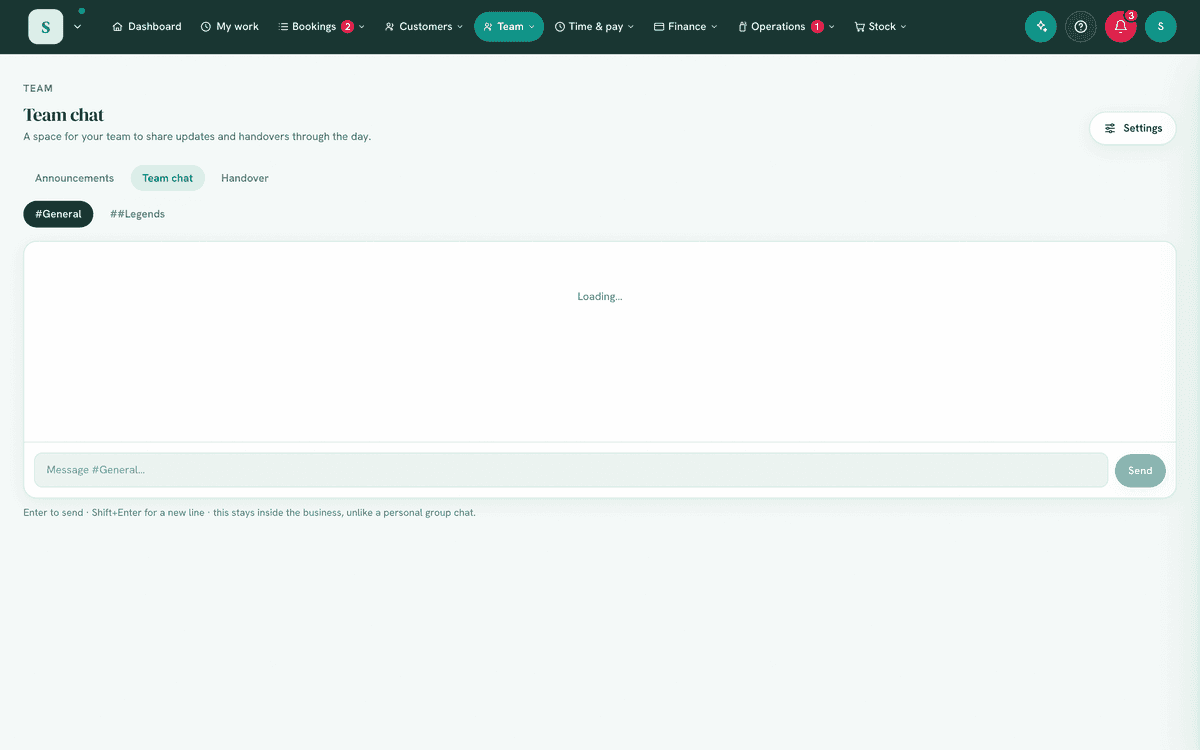
- Team chat: a tab per channel, with a red count on any channel that has new messages, and the conversation headed by day. As in any chat app, the newest message is at the bottom, just above the box you type in, and the chat opens there: the box stays on screen, so there is no scrolling to reply.
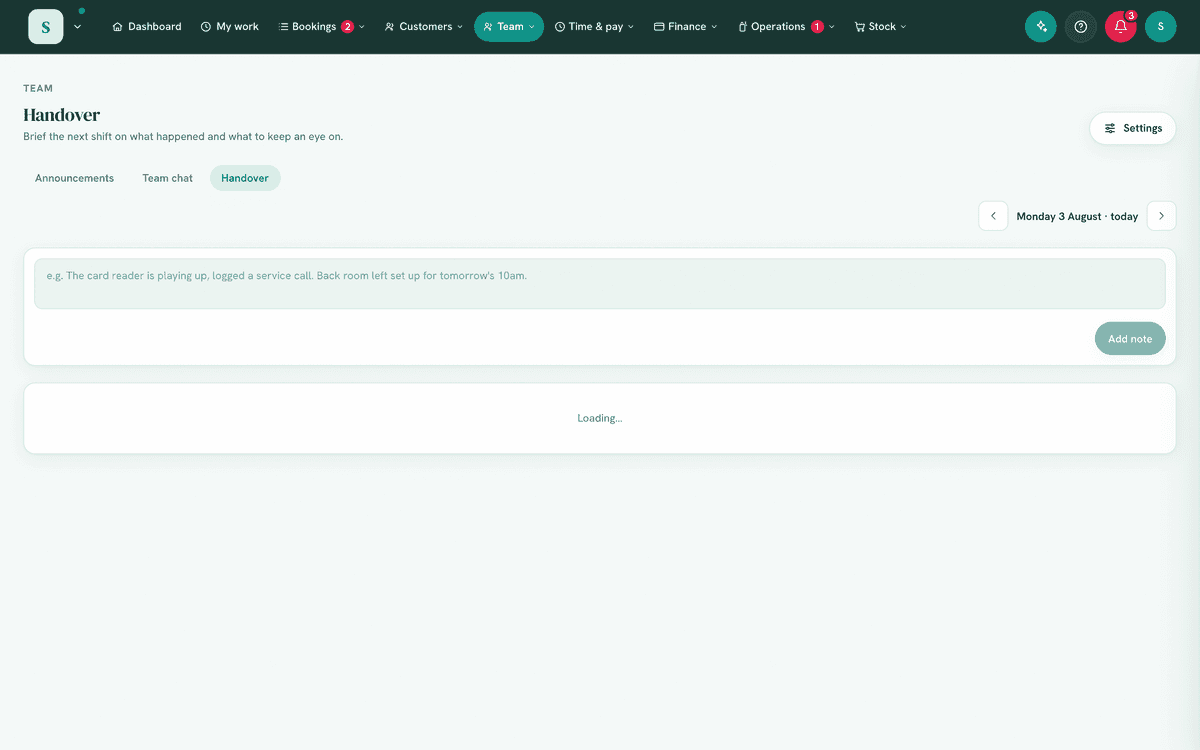
- Handover: one day at a time, today first, with the notes for that day, newest first under the box you write in.
- Reactions under a notice, message or note: each emoji with how many people chose it, yours highlighted.
- Comms settings (the Settings button): Team chat, Handover, photos and reactions on or off, the reactions on offer, and the chat channels.
6. Turning it on
Settings → Modules → Team → Announcements & chat. Team chat, Handover, photos
and reactions are on to start with and can each be switched off in Comms
settings. A switched off part disappears for everyone, the kiosk included.
7. Step-by-step tasks
7a. Post an announcement
- Press New announcement.
- Give it a title and a message. Choose a priority (Normal, Important, Urgent), add a category if you like, Pin to top to keep it first, and tick Require acknowledgement for a must-read.
- To show what you mean, press the photo button and add up to 10 photos (see 7l). A notice can be photos with no message.
- Who sees it: Everyone on the team, or Chosen people, Roles or add-ons or A department, then tick who. Only they see it, they are the ones counted in "N of M read", and only they are told about it. It shows For and who on the notice. To tell front of house to clean the coffee machine better, choose their department and tick Require acknowledgement: you see who has read it, and who has not.
- Press Post to team.
A web address in the message can be tapped to open it. Everyone it is for gets a notification on their phone, if they have switched their phone on (see 7j). Departments are the Department on each person's card in the Staff list, matched however the capitals were typed. A person who changes department sees the notices for their new one from then on.
7b. Read and acknowledge a notice (everyone)
- Open Announcements. A notice is recorded as read once it has been on your screen for a moment; there is nothing to press. Notices that arrived since you last looked are marked New, and the New filter shows just those.
- A notice that asks for an acknowledgement shows an Acknowledge button and the Action needed filter collects them. Seeing it is not enough: press Acknowledge. That press is the record the business keeps.
- If a notice you acknowledged is reworded, it says so and offers Acknowledge again, so your acknowledgement is against the wording as it is now.
You are never asked to read or acknowledge your own notice, or one that is not for you. Somebody who can post announcements sees every notice, including ones for chosen people, without being asked to read them.
7c. See who has read a notice (Post announcements)
Under each notice: "5 of 8 read" (or acknowledged), and Waiting on: with the names still to do it. After a notice is reworded, Acknowledged before the last change: names the people whose acknowledgement is against the older wording. Team members with no login cannot read anything here, so they are left out of the counts and named once above the list instead.
7d. Change, pin or delete a notice
- Edit: only the person who posted a notice can change it, its photos included. Changing only its category or priority does not count as rewording it; changing its words or its photos does, and anyone who acknowledged it is asked again. A notice posted by an automation can be edited by anyone who can post.
- Pin / Unpin: anyone who can post.
- Delete: anyone who can post. It asks first and, when people have read or acknowledged it, says that record goes with it. It goes from everyone's screen at once. The activity log keeps the notice's title and how many reads or acknowledgements went.
7e. Tidy older notices
Hide notices older than (Never, 30, 60 or 90 days) takes older notices out of the main view for everyone, the kiosk included. Nothing is deleted: they stay under Hidden, and a pinned notice is never hidden.
7f. Use Team chat
- Open Team chat and pick a channel.
- Type and send. On a computer, Enter sends and Shift+Enter starts a new line. On a phone, Enter starts a new line and Send sends. A message can be up to 4,000 characters, and can carry up to 10 photos (see 7l), with or without words.
- Messages from the team appear as they are sent. A channel opens on its newest 200 messages; Load earlier messages brings older ones. Times and days are on the business's own clock (Timezone in Settings → General), wherever the person reading is.
- To delete a message, hover over it on a computer and press the cross, or tap it on a phone and press Delete. It goes from everyone's screen at once. You can delete your own; anyone who can post announcements can delete anybody's, and that is recorded in the activity log.
7g. Manage chat channels (Comms settings)
- Add channel: up to 20 channels, 40 characters a name, and no two with the same name.
- Who's in it: Everyone on the team, or Chosen people, Roles or add-ons or A department. Only they, and whoever can post announcements, see the channel, its messages and its name; nobody else is told about it, and it shows a lock with who it is for. A channel for front of house and another for the kitchen lets a manager talk to one without the other.
- Rename: the channel's messages move with it, and so does who is in it. The name of a removed channel for chosen people is refused while it still holds that channel's messages: add the channel back, or choose another name.
- Remove: it says how many messages the channel holds. They are hidden, not deleted, and stay with the people the channel was for. Add a channel with the same name again and they come back, still for the same people. A business always keeps at least one channel.
7h. Leave a handover note
- Open Handover. It opens on today, on the business's own clock; use the arrows for other days and Today to come back.
- Write the note (up to 2,000 characters), add photos if they help (see 7l), and press Add note. It is stamped with your name and the time.
- Notes added on another device or at the kiosk for the day on screen appear by themselves. Delete your own the same way as a chat message.
7i. On the kiosk
The kiosk tablet shows Announcements and Team chat to read, photos included (tap one to see it full size), with each message's channel when there are several, and Handover to read and add to, naming who is writing. It follows the same switches and the same Hide notices older than setting as the back office. A tablet is shared, so it shows only notices and channels for everyone: never one for chosen people.
7j. Who is told
- The bell: "unread announcements" counts the notices still asking something of you (not hidden ones, not your own, not ones for other people); "N new in #channel" for each chat channel open to you; "new handover notes" for people with a shift coming up (everyone, in a business that does not use the roster).
- The morning email includes unread announcements by default.
- Your phone, once you have switched it on at My work → On your phone: a new notice arrives as a notification, to start with; team chat messages only if you switch them on. Each chat channel is one notification that keeps itself up to date. Change either at My work → What you get told about, in the On my phone column. Nobody is told about their own post.
- Reactions tell nobody: not the bell, the morning email or a phone. They show under the message for whoever looks.
7k. Turn photos off
Photos in Team chat and Handover are on to start with. Comms settings → Photos in chat and handover switches them off for everyone; photos already sent stay. Announcements can always have photos, because only people who can post can add them.
7l. Photos
- Press the photo button beside the message box. On a phone you choose the camera or your photo library; on a computer you can also paste a screenshot into the box or drag photos onto it.
- Each photo shows above the box while it uploads. Press its ✕ to take it out. Up to 10 go with one message.
- Press Send, Add note or Post to team once they have uploaded.
In the conversation one photo shows large and several show as a grid; tap any of them to see it full screen, swipe or use the arrows for the next, and double tap to see it at full size.
- Private. Photos are kept in the business's private storage and are only ever shown to people signed in to the business, through an address that stops working after an hour. They are not saved to anybody's phone unless that person saves one themselves, and when somebody leaves the business their access to them goes with their login.
- Small. Each photo is shrunk on the phone before it leaves, to about 200 KB, so it sends quickly on a weak signal and the business's storage lasts.
- Deleting a message, note or notice deletes its photos. A photo picked and never sent is removed after a day.
- Formats. Any photo a phone or computer takes is fine. One in a format most devices cannot show (an iPhone photo in Apple's own format, on a computer that cannot convert it) is refused, saying to screenshot it or save it as a JPEG.
- Videos and documents cannot be attached. For a document the team needs, upload it at Operations → Documents and mention it in the notice.
7m. React to a notice, message or note
- On a computer, hover over a message or note and press the face beside it; under a notice, press React. On a phone, tap the message or note, or press React under a notice.
- Pick a reaction. It shows under the message with how many people chose it, and yours is highlighted. You can add more than one.
- To take yours back, press it under the message, or pick it again.
- To see who reacted, hover over a reaction on a computer. On a phone, open the choices as in step 1: the names are listed under them.
- Reactions show for everyone as they are made. Nobody is notified about one (see 7j).
- A reaction is not an acknowledgement. A notice that asks for one still needs Acknowledge, and only that press is counted.
- Deleting a notice, message or note deletes its reactions.
- The kiosk shows notices and chat without their reactions, and cannot add one.
7n. Choose the reactions (Comms settings)
Reactions start as 👍 ❤️ ✅ 🙏 🎉 😂.
- Reactions switches them off for everyone. Switched back on, the reactions already made come back as they were.
- Under Reactions on offer, press one to take it off. Pick another from More to choose from, or type or paste any emoji into Any other emoji and press Add. Up to 8, shown in that order. Use the starting set goes back to the six above.
- A reaction taken off the list stays on the messages it was used on, and the people who used it can still take theirs back.
8. Examples
- Beginner: post "New opening hours from Monday" with Require acknowledgement, and watch Waiting on empty as people acknowledge.
- Café: a #kitchen channel for prep, and a handover note from the morning crew to the afternoon one.
- Venue: categorise notices (Safety, Roster, General) and pin the safety ones.
- Trades: the morning crew leaves "Ute 2 needs a new tyre" in Handover; the afternoon crew adds ✅ once it is done, with no reply needed.
9. Reports & exports
Read and acknowledgement counts are under each notice. Settings → Activity records reworded and deleted notices, messages and notes deleted by somebody other than their author, channel changes, and changes to Comms settings (what was switched on or off, and the reactions on offer). Chat and handover are living records, not exports.
10. Common mistakes
- Using chat for a must-read notice: post an announcement with Require acknowledgement, so you can see who has done it.
- Too many channels: keep them few and purposeful.
- Removing a channel to rename it: use Rename, which keeps its messages.
11. Troubleshooting
| Problem | Fix |
|---|---|
| Staff didn't see a notice | Post it as an announcement (tracked) rather than a chat message, and check Waiting on. |
| Can't post announcements | You need Post announcements. |
| No Settings button | Comms settings need Edit business settings & branding. |
| The unread count won't clear | Scroll through the notices: each is read once it is on screen. A notice asking for an acknowledgement needs Acknowledge. |
| Edit is missing on a notice | Only the person who posted it can change it. Delete it and post your own instead. |
| A channel is missing | It may be for chosen people you are not among (whoever can post announcements sees every channel), or it was removed: add a channel with the same name in Comms settings to bring its messages back. |
| Someone can't see a notice or a channel | It is for chosen people. Check For on the notice, or Who's in it in Comms settings, and their Department on the Staff list. |
| A notice for a department reached nobody | Nobody on the team has that department, or none of them has a login. The department is the one typed on each card. |
| The tablet doesn't show a notice or a channel | It is for chosen people. A shared tablet shows only what is for everyone. |
| There is no Who sees it or Who's in it | The latest update is not in yet, or you do not have the permission for it. |
| Older chat messages are missing | Press Load earlier messages at the top of the channel. |
| A message won't send | It is over 4,000 characters (the box says by how much), the channel was just removed, or a photo is still uploading or was not added (remove it, or wait for it). |
| There is no photo button | Photos are switched off in Comms settings, or you are in an announcement without Post announcements. |
| A photo says Not added | Read the line under it: the format cannot be shown on most devices, it was too big, or the business is out of storage. Remove it and try another. |
| A phone did not buzz for a new notice | That person has not switched their phone on at My work → On your phone, or has turned the line off in What you get told about. |
| There is no React button or face | Reactions are switched off in Comms settings. |
| A reaction cannot be picked any more | It was taken off Reactions on offer. Pick another, or add it back in Comms settings. |
| Someone reacted, but the notice still says they have not acknowledged it | A reaction is not an acknowledgement: they press Acknowledge. |
12. Error messages
- "Only the person who posted an announcement can change it.": ask them, or delete it and post your own.
- "A message can be up to 4,000 characters." / "A note can be up to 2,000 characters.": shorten it or split it in two.
- "There is already a #… channel.": pick another name.
- "Only someone who can change the business's settings can change this.": Comms settings need Edit business settings & branding.
- "That channel no longer exists, pick another.": it was removed while you were writing.
- "That channel isn't open to you.": it is for chosen people, and you were taken out of it.
- "#… was a channel for chosen people and still holds its messages. Add it back, or choose another name.": renaming onto that name would show its messages to different people.
- "This notice isn't addressed to you.": it is for chosen people; a notice is acknowledged only by the people it is for.
- "Choose who it is for, or choose Everyone on the team.": chosen people, roles or a department was picked with nobody ticked.
- "One of the people chosen is no longer on the team. Choose again." / "One of the roles chosen no longer exists. Choose again.": the list changed while you were choosing.
- "A message can have up to 10 photos.": send the rest in another message.
- "That photo is in a format not every phone can show.": take a screenshot of it, or save it as a JPEG, and add that.
- "A photo didn't finish uploading. Remove it and add it again.": the connection dropped while it was sending.
- "Reactions are switched off for this business.": they were switched off in Comms settings while the page was open.
- "That reaction isn't offered here any more.": it was taken off Reactions on offer; pick another.
- "Keep at least one reaction, or switch reactions off." / "A business can offer up to 8 reactions." / "… is not a single emoji.": Comms settings, when choosing the reactions.
Related: Documents · Team happiness · Shift requests