
Module · Safety & cleaning
Where to find it in the app
- Use it: Operations → Safety
- Turn it on/off: your business name (top-left) → Settings → Modules → Operations → Safety & checklists
Plan: Business · Module group: Operations · Navigation:
Operations → Safety
1. Overview
Purpose. Your safety and cleaning checks, set up once and done on a schedule: fridge temperatures, a closing clean, an exit check, a monthly fire extinguisher look, a yearly evacuation drill. Staff sign them off on a phone, the tablet or the dashboard, and the business keeps a dated record of every check: what was required, what happened, who did it, when, and what happened about anything that failed.
The record. Every sign-off is kept with its result, reading, note, photo, who and when. A check that failed raises a fault on Maintenance, where it is followed through to fixed. A check that came and went without anybody doing it is written down each night as Not done. None of it is rewritten when the checks are changed later, and none of it deletes itself.
2. When to use it
- Recurring cleaning and food safety checks (fridge and freezer temperatures, sanitising, toilets, opening and closing).
- Workplace safety checks (exits clear, fire extinguishers, first aid kits, electrical leads, ladders, vehicle pre-starts, a hoist before use).
- Longer cycles: fire equipment servicing every 6 months, an evacuation drill or an inspection once a year.
- Anything done whenever it comes up (as needed), such as resetting a party room after each party.
For incidents and hazards, use the Incident report and Hazard and risk assessment forms in Forms & workflows; for something broken or unsafe, Maintenance.
3. Required permissions
- View safety checklists (
safety.view): see the day's checks, who to contact, and the History. - Complete safety checks (
safety.complete): sign checks off. - Build / edit checklists (
safety.manage): Settings and Overview, and the alarm when a check fails.
4. Navigation path
Operations → Safety
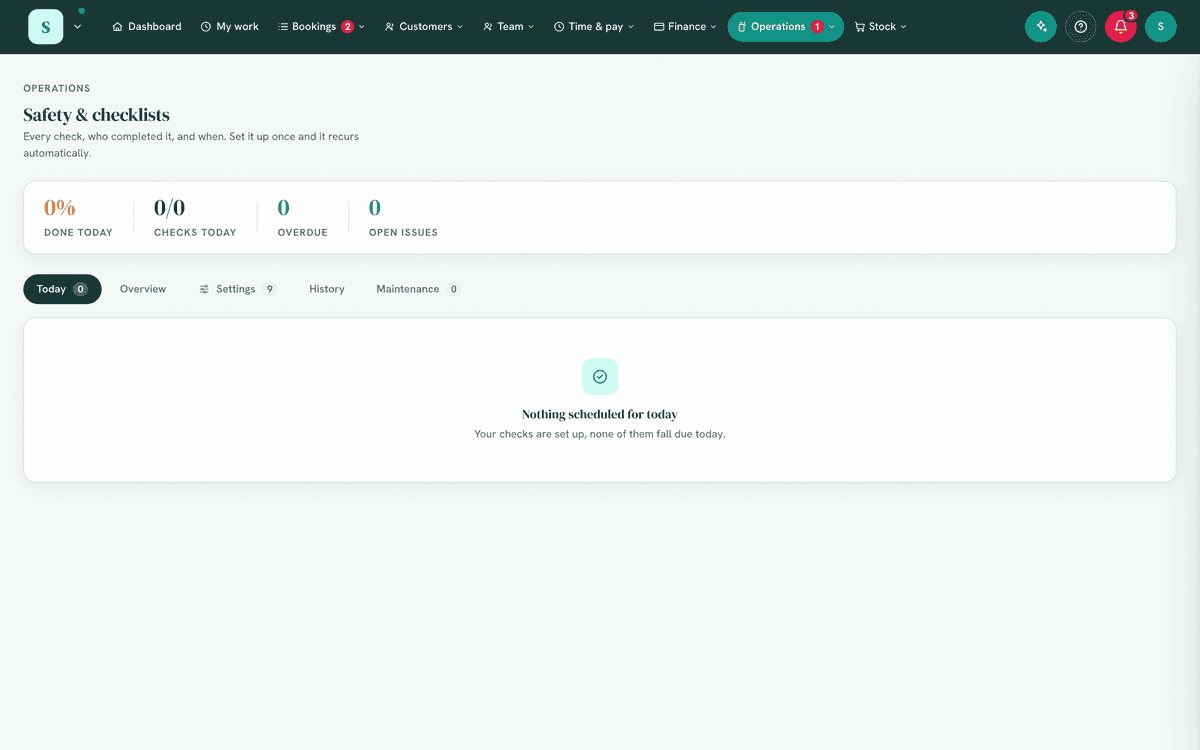
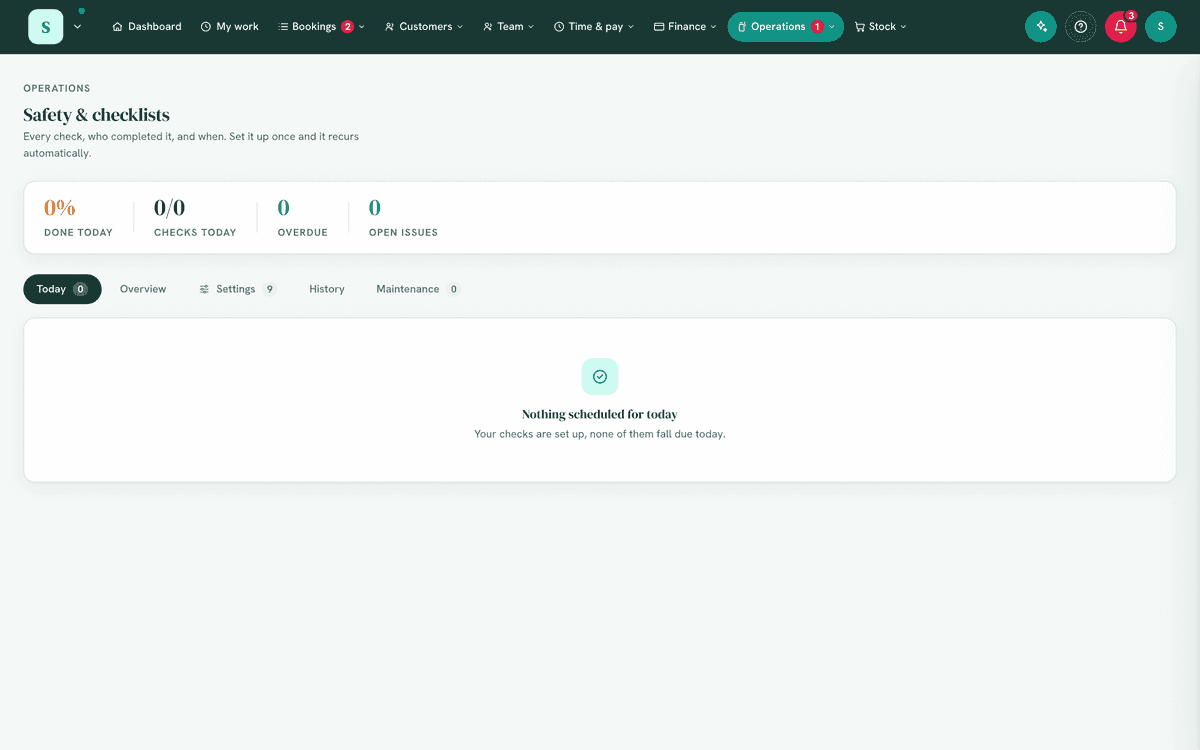
5. What you'll see
- A summary band: how much of today's list is done, and how many checks are overdue.
- Emergency numbers and who to contact (your first aiders, wardens and other designated people, from Team) at the top of Today.
- Today: the day's checks, grouped by the time they are due and then in the order your team walks the building. Above them, Still to do from earlier: any weekly or longer check missed on its day.
- Overview (managers): the month as a calendar, overdue right now, the audit export and the overdue email switch.
- Settings (managers): the common checks library, areas, categories, the checks themselves and the emergency numbers.
- History: the record, by day.
- A link to Maintenance whenever something is broken.
6. Turning it on
Settings → Modules → Operations & compliance → Safety. If you chose a relevant
business type at sign-up, the common checks library suggests the checks that
business usually has.
7. Step-by-step tasks
7a. Do a check (staff)
- Open
Operations → Safety(or the dashboard card, or the Safety checks tile on a tablet). - Do what the check asks. How to do it shows its instructions, if it has any. A check with a document (a procedure or safety data sheet) shows its name: tap it to open the document, on a phone or the tablet.
- Sign it off:
- Just a tick: Done. Add a note opens the same sheet with a note box.
- Pass / Fail: choose one.
- A reading: type it (4, 4.5, -18; a comma is asked again rather than guessed). The sheet says whether it is in range before you save. A reading exactly on a limit is safe; anything past it fails.
- A photo, when the check needs one.
- It is recorded with who you are and the time. Done after its time and grace, or on a later day, it is marked late.
A check cannot be signed off twice: a second tap, or a colleague on another phone, is told "Already signed off by Sam at 9:02 am." Only the checks on today's list can be signed off, so a missed day cannot be filled in afterwards.
7b. When a check fails
A pass/fail check marked Fail, or a reading outside its safe range, is a failure. Before it is logged:
- Say what is wrong (needed).
- Say what you did straight away, if anything (moved the stock, closed the area, called the technician).
- Add a photo if it helps.
Logging it does three things at once: the failure goes on the record, a fault is raised on Maintenance with what you wrote, and everyone who manages safety is told straight away, in the app, by email and on their phone (the owner, if nobody manages safety). The alarm cannot be switched off.
When it has been dealt with, Check again on the same line. The failure stays on the record and the re-check is added beside it, and to the fault's notes as "Checked again: 4°C, in range". If it fails again while the fault is still open, that is added to the same fault rather than raising another.
7c. Checks missed on their day
- A weekly, fortnightly, monthly, 3 monthly, 6 monthly or yearly check stays on Today under Still to do from earlier until it is done or the next one comes round, and is saved against the day it was due. It reads overdue once a day you were open has passed without it. If its day was one you were closed, it shows on the next day you open, not overdue yet.
- A daily or timed check belongs to its day. A timed one is overdue once its time plus its grace (set on the check) has passed. One not done by the end of the day is written down that night as Not done.
- Overdue alerts (Overview) email whoever manages safety once a day when checks are overdue.
- Daily and timed checks are not owed on days you are closed (Business Hours, and closures such as public holidays), and closed days never nag.
7d. Set up checks (manager)
- Add a common check from the library, which suggests the checks common for your kind of business first: cafés, gyms, spas, halls, play centres, trades, workshops, clinics, pet care, cleaning, and checks any workplace has (exits, fire equipment, first aid kits, electrical leads, safety switches, chemicals, the evacuation drill). Each brings its area, schedule, limits and instructions, all editable.
- Areas: where checks happen, in the order your team walks the building. Drag them, or use the arrows (the way on a tablet). Tap a name to rename it; its checks stay with it.
- Categories: your own tags.
- New check: a name, area, category, how often, what is recorded, and
optionally how to do it, a document and require a photo.
- How often: once a day, set times a day, every N hours while open, weekly, fortnightly, monthly, every 3 months, every 6 months, yearly, or as needed. Fortnightly and the longer ones ask for the date the first one is due, then repeat from it (on the 31st, a shorter month uses its last day).
- What's recorded: Just a tick, Pass / Fail, or A reading with a safe range (lowest safe, highest safe, unit).
- Document: a procedure or safety data sheet already in Documents. Everyone who does the check can open it from the check, on the tablet too, whatever their access to Documents, so you can only link a document you can open yourself. A new version uploaded in Documents is the one the check opens. The choice appears while Documents is switched on.
- A setting that cannot work is refused with what to change: a lowest safe reading above the highest, a word where a number belongs, a time that is not a time.
- Emergency numbers: the numbers your team should be able to tap and call from Today.
Every change to a check is in Settings → Activity log, with what it was and what it became.
7e. Switch a check off, or delete it
A check that has ever been signed off cannot be deleted: its record is part of your safety record. You are offered Switch it off instead, which stops it being due and keeps everything it recorded. A check that was never signed off deletes normally. Removing an area keeps its checks, with no area.
7f. Put the round in walking order
The Today tab, the dashboard card and the tablet follow the order of the areas and then the checks within each, so a round reads front door, kitchen, play area, toilets. A check with no area sorts last.
7g. History and the audit export
History is the record. Pick a range (up to 13 months at a time), filter by check, search, or show only Failed, Not done or Late. Each line shows the check as it was called at the time, the reading and safe range, the note and what was done straight away, who and when, whether it was late or a re-check, the photo (opened through a link that expires), and for a failure, what became of its fault (Open, repair booked, or Fixed 9 Oct by Alex).
Export CSV (History, or Audit export on Overview with an area filter) gives every line in the range with all of that, for an inspector, an insurer or your own files. Nothing is left out of a long range: one that is too long to read in full is refused rather than cut short.
7h. The Overview calendar
A month at a glance: all done, partly done, missed or failed, with a day's detail when you select it. It is worked out from your checks as they are set up now, counting each check only from the day it was added. History is the record itself and does not change when a check does.
8. Examples
- Café: fridge and freezer readings at 9am and 3pm, a closing clean, toilets every 3 hours while open; a weekly deep clean that carries over if Monday is missed.
- Play centre or venue: a daily soft play and exits check (pass/fail), the fire extinguishers monthly, the evacuation drill yearly, and a party room reset as needed after each party.
- Workshop: a hoist pre-use check each day, the eye wash weekly, the hoist's yearly inspection by a competent person.
- Trades: a vehicle pre-start each morning and tools and leads weekly, on a phone in the van.
9. Reports & exports
- History and its CSV: every sign-off and every recorded miss.
- Audit export on Overview, by date range and area.
- The monthly calendar on Overview.
- Open faults feed the dashboard and Business health; they are listed on Maintenance.
10. Keeping the record
HappierBiz keeps every sign-off and every recorded miss. Nothing deletes itself, a check with a record cannot be deleted, and a completed sign-off cannot be edited: a correction is a new sign-off, as on a paper log. How long you need to keep safety and food safety records depends on your state and your kind of business (for example, food businesses with records under the Food Standards Code keep them for at least three months, and WHS laws ask for a record of each notifiable incident to be kept for five years). Your regulator can tell you what applies to you.
11. Common mistakes
- No safe range on a reading. Without a lowest or highest safe value, a reading can never fail. Set both, or the one that matters.
- A weekly check set on a day you are closed. It still works (it shows on the next day you open), and the editor says so, but moving it to an open day keeps the list honest.
- Ticking a failed check as done. Use Fail, say what is wrong, and check again once it is dealt with: that is the record that it was found and fixed.
- Deleting old checks to tidy up. Switch them off instead; their record stays.
12. Troubleshooting
| Problem | Fix |
|---|---|
| A check isn't on Today | It is not due today, it is switched off, you are closed today, or it was added after its day. Check its schedule in Settings. |
| A weekly check is still on Today | It was missed on its day. It stays, overdue, until it is done or the next one comes round. |
| "Already signed off by …" | Somebody did it first. Their sign-off is on the line. |
| "That check is not due now. Refresh to see what is." | The page was open from earlier (or another day). Refresh. |
| "… is outside the safe range … Say what is wrong before logging it." | The reading fails. Check it is not a typo; if it is right, say what is wrong and log it. |
| "… can't be deleted. Switch it off instead and the record stays." | The check has sign-offs. Switch it off. |
| Can't see Settings or Overview | You need Build / edit checklists. |
| Audit export is empty | No sign-offs or misses in that range, or that area. |
| A check's document does not show | Documents is switched off, or the document was deleted from Documents. Link another in the check's settings. |
| The document I want is not in the list | You can only link a document you can open yourself. Ask whoever manages Documents, or upload it first. |
13. Error messages
- "Enter the reading as a number, like 4 or 4.5." The reading had letters or a comma in it.
- "This check needs a photo." Add one before signing off.
- "Mark it pass or fail."
- "That check has been switched off." A manager switched it off while the page was open.
- "Choose up to 13 months at a time." History and the export read up to 13 months per range.
- "You can only link a document you can open yourself. Choose another."
- "That document is no longer in Documents." It was deleted after it was linked. Link another in the check's settings.
Related: Maintenance · Documents · Equipment & maintenance · Forms & workflows · Kiosk tablets