
Module · Leave
Where to find it in the app
- Use it: Time & pay → Time off & shifts
- Turn it on/off: your business name (top-left) → Settings → Modules → Time & pay → Leave
Plan: Solo and Business · Module group: Your team · Navigation:
Time & pay → Time off & shifts(Leave tab)
1. Overview
Purpose. Staff request time off on a calendar; managers approve it and see who's away at a glance. Approved leave automatically blocks bookings for that person, so you can't be booked when someone's off. Optional leave balances give an indicative view of how much leave each person has left.
Important, balances are indicative only. HappierBiz leave balances are a convenience view, not payroll and not Single Touch Payroll (STP). Your payroll system (e.g. Xero) remains the source of truth for entitlements and accruals.
How a request is counted. The same way payroll counts it. A request draws down the hours of the person's ordinary working days inside it, read from their regular hours on the roster: a Saturday-and-Sunday worker's weekend off costs two days of leave, and a Monday they never work costs nothing. A public holiday that falls inside the leave is not deducted (Fair Work Act, sections 89 and 98). Somebody with no regular hours on the roster is counted Monday to Friday at the hours per day set in the balance settings. Part-day leave draws the hours you enter.
2. When to use it
- For staff to request annual, personal/carer's, parental or other leave.
- For managers to approve time off and keep the roster/bookings honest.
3. Required permissions
- Request leave & track their own (
leave.view). - See the whole team's leave (who's off) (
leave.view_team). - Approve leave & edit leave types (
leave.approve).
4. Navigation path
Time & pay → Time off & shifts (Leave tab)
5. What you'll see
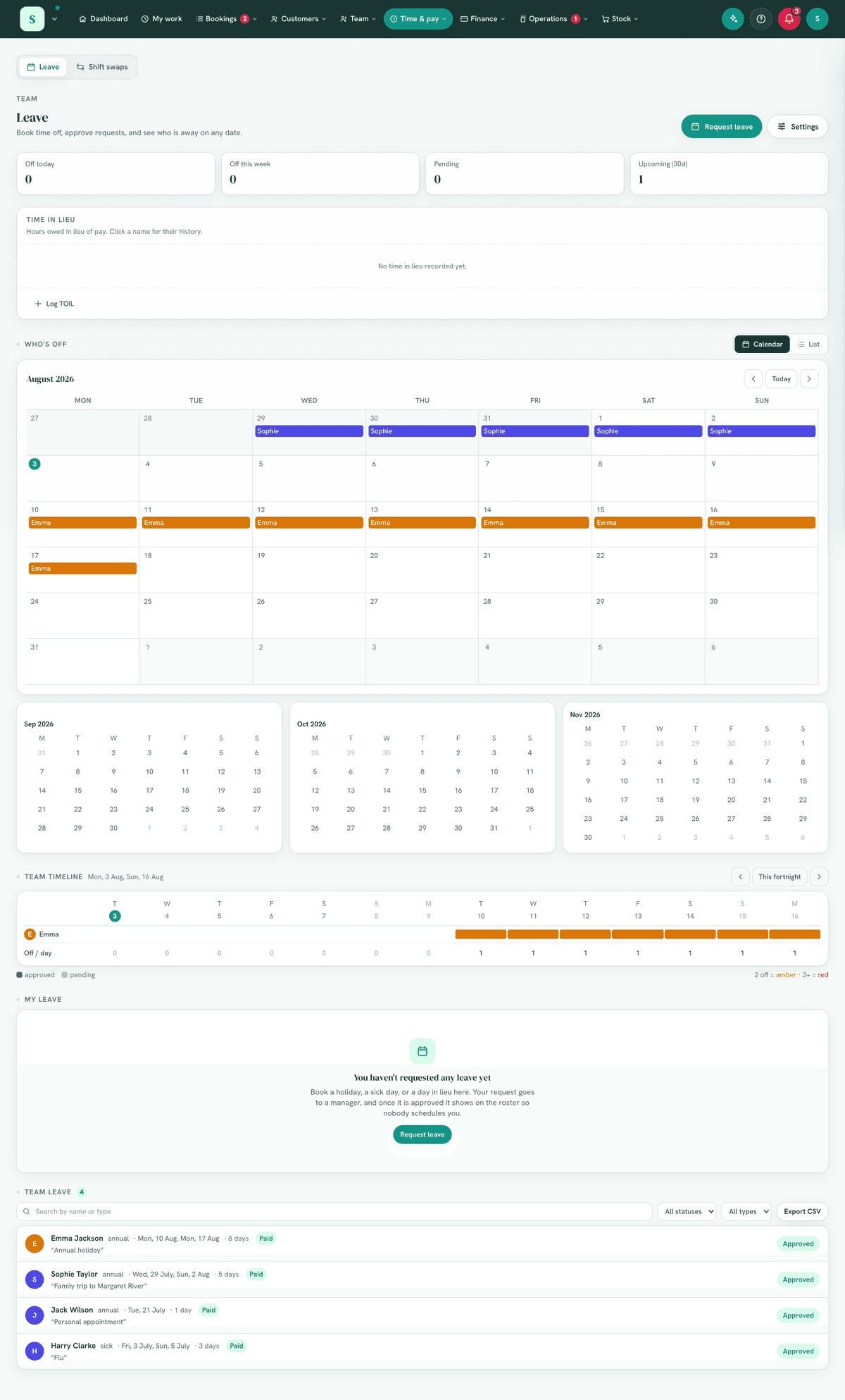
- A header that adapts to your role: approvers get "Book time off, approve requests and see who's away"; staff get "Request time off and track your leave."
- Your leave balance cards (if balances are enabled), current balance and yearly entitlement per leave type, shown as indicative.
- A To approve section for managers (pending requests awaiting them).
- Your leave, your own requests and their status.
- A who's away view across the team.
- A settings panel (approvers) for leave types, balances and employment.
6. Turning it on
Settings → Modules → Your team → Leave. Set up your leave types (AU
defaults like Annual and Personal/Carer's are seeded and editable) and, if you
want balances, the entitlements per employment type.
7. Step-by-step tasks
7a. Request leave (staff)
- Open
Time & pay → Time off & shiftsand pick the Leave tab. - Choose the leave type and the dates. For a part-day, set custom hours.
- Submit. If balances are on, you'll see a projection of your balance after the request.
- The request goes to a manager and shows as pending. A request over dates you already have pending or approved is refused; cancel the earlier one first if your plans have changed.
Going home early. Somebody who clocks out on My work before their shift ends is asked whether the rest of it is leave, and one press asks for it from the minute they clocked out to the end of the shift. If they clocked out at the kiosk instead, their My work card offers the same ask afterwards. It is an ordinary request, decided the same way. See Roster & timesheets, Clock in / out.
Notice. Leave needs notice (in the settings) holds leave somebody can plan, such as annual leave or time in lieu. It never holds personal / carer's, compassionate, family and domestic violence or community service leave: under the National Employment Standards that notice is due as soon as practicable, which can be after the leave has started (Fair Work Act ss 107, 106C and 110). So somebody going home unwell can always ask, whatever notice you want for holidays. Each type says Needs notice or No notice needed in the leave types list, and you can change it there.
The owner's own leave. Nobody approves their own leave, and the owner has nobody above them, so the owner's button reads Book time off and their leave is approved as they book it, with no reason asked and no email. A sole trader's holiday blocks their booking page straight away, and in a business of an owner and an apprentice, nothing waits on the apprentice.
How approvers hear about it. The first request in a quiet hour is emailed to the approvers straight away, with its details. Any request raised in the hour after it is held and sent as one email when the hour is up, listing everything still waiting. So a manager never gets more than one of these an hour, and a request made a few minutes after another is not lost: it is in the next email and on the To approve list at once. Under two-step approvals the email goes to the requester's direct manager when one is set.
7b. Approve / decline (manager)
- In To approve, open a pending request.
- Review the dates and the requester's projected balance.
- Approve or decline. Approved leave blocks that person from bookings for those dates/times and shows in who's away. Approving is refused when the person already has approved leave over any of the same dates, so one day is never paid twice; cancel one of the two first.
- If the person is still rostered on shifts inside the leave, the schedulers are emailed once, and a Release shifts prompt clears those days from the roster in one click. This also happens when leave is approved automatically by your auto-approve rules. Leave for part of a shift (home unwell at 12:30, an appointment at 2pm) never offers this: they work the rest of the shift, so it stays.
You cannot approve your own request; another approver decides it. The owner is the exception: their own requests are theirs to decide. Approve N clear approves every waiting request with no booking clash and enough balance in one go, and reports anything it could not approve.
Time in lieu is refused at approval when it would take their bank below nothing, and approving leave that falls in a pay week already finalised says so: the leave is not in that week's pay until the week is unfinalised on Timesheets and finalised again. Paid leave still waiting holds a pay period from being finalised, by name.
Two-step sign-off (optional). If your business has turned on two-step approvals, a leave request takes two approvals: the requester's direct manager confirms the time off first, then a Payroll Officer signs it off (any time-in-lieu draw happens at that final step). A request part-way through carries a "Payroll sign-off" tag and stays in the list until payroll releases it. See Approvals & payroll sign-off. With it off (the default), approving leave is a single decision.
How approved leave is paid. Approved paid leave reaches the timesheet as its own leave line on each day it covers: the hours that day was rostered for, else the person's regular hours for that weekday, else, with neither, Monday to Friday at your hours per leave day, the same figure the balance is charged. Nothing done to the worked hours that week removes it. Leave for part of a day is paid beside the hours worked that day: the rostered hours it took, less any time the clock shows them working inside it. See Roster & timesheets, Approved leave on the timesheet.
Recording it for somebody. When somebody rings in unwell, goes home part way through a shift, or is let go early on time in lieu, a manager records it from their shift on the roster with Record leave, of any type the person can take, for the whole day or for part of it, and nothing is asked of the person. See Roster & timesheets, Somebody calls in unwell.
7c. Manage leave types & balances (approver)
- Open the settings panel on the Leave screen.
- Add/rename leave types, set balance behaviour (unit, hours per day) and per-employment entitlements.
Each leave type in the list has these settings beside it:
- Paid / Unpaid: whether the type is paid to staff who accrue paid leave.
- Casuals: what a casual may take of it. Press it to step through Casuals: paid, Casuals: unpaid and Casuals: no. A type set to no isn't offered to casuals at all.
- Private / Not private: a private type shows as plain Leave to everybody except the person, whoever approves leave and whoever runs payroll, and is never named in the payroll file.
- Needs notice / No notice needed, shown when Leave needs notice is set: whether that notice applies to the type. It starts off for personal / carer's, compassionate, family and domestic violence and community service leave (see section 7a).
The starter list is set up to the National Employment Standards: family and domestic violence leave is paid for casuals and private; carer's, compassionate, parental and community service leave are open to casuals unpaid; annual leave, long service leave and time in lieu are not offered to them. A change to either casual or private setting is recorded in the Activity Log.
7d. Family and domestic violence leave
Every employee, casuals included, can take paid family and domestic violence leave. A casual is paid for the hours they were rostered over the leave, so a casual with nothing rostered that day has nothing to be paid for. A permanent employee is paid like any other paid leave (section 7b).
The law doesn't let a pay slip show this leave, so the app keeps its name out of everything a pay slip is built from:
- The payroll file and the pay run carry it as the hours of the day it replaced, at that day's rate (a Saturday shift is Saturday hours), never as a leave column.
- Xero receives those hours on the timesheet for that day, never as a leave application with the type on it.
- Everywhere else it shows as Leave: the roster for anybody who doesn't approve leave or run payroll, the team's Who's off, the calendar, the jobs screen, every subscribed calendar feed (the person's own included, since a calendar app is often shared at home), every email about it (the person's and the approvers', with no reason in them), and the AI assistant, which is never told the type or the reason.
The person, whoever approves it and whoever runs payroll still see its name, so it can be approved and paid correctly. Another type can be made private with its Private setting (section 7c).
8. Examples
- Casuals. Under the National Employment Standards a casual doesn't accrue paid annual or personal leave, so their request form lists only the types open to casuals (section 7c) and says why, with a Mark days unavailable button that takes an ordinary day off to their availability instead (it shows on the roster at once, no approval needed). Carer's and compassionate leave (unpaid) and family and domestic violence leave (paid) still apply to casuals and can be requested here; each type shows Paid or Unpaid for them as they pick it. Their My work page shows Mark days unavailable as the time-off tile, with Request leave beneath it.
- Their unavailable days show on this page too. Under Who's off, a casual's unavailable dates appear on the calendar in red with a dashed edge, and in the list marked Unavailable, beside approved leave. The Off today, Off this week and Upcoming tiles and the team timeline count them too. They are not leave: nothing to approve, nothing to cancel here, and no balance. The casual changes them from My work.
- Beginner: a casual requests a single day off; the manager approves it and that day is no longer bookable for them.
- Real-world (salon): a stylist books a week's annual leave; their column on the roster/calendar is blocked and reception can't book clients with them.
- Advanced: an approver configures separate entitlements for full-time vs part-time staff so balance projections are realistic, while reminding the team that Xero remains the payroll source of truth.
9. Reports & exports
The who's away view and per-person balances (indicative) are the at-a- glance reports. Pending approvals also appear in the notifications bell. From the team leave directory you can also Export CSV of the leave requests you're looking at, filtered by status, type and year (name, type, dates, duration, status, paid/unpaid and reason).
10. Common mistakes
- Treating balances as payroll, they're indicative; reconcile with your payroll system.
- Approving leave that clashes with bookings, check the person isn't already booked; approved leave blocks new bookings but won't auto-cancel existing ones.
- No leave types set up, staff can't categorise requests; seed your types first.
11. Troubleshooting
| Problem | Fix |
|---|---|
| Leave doesn't block bookings | Confirm the request is approved (pending leave doesn't block). |
| A staff member can't request leave | They need Request leave & track their own, and the module on. |
| A staff member can't see who else is off | Give them See the whole team's leave (who's off). |
| Balances look wrong | They're indicative and depend on the entitlements you set, your payroll system is authoritative. Leave taken before a person's opening date is not deducted again: the opening balance you entered already reflects it. |
| A week of leave drew down fewer days than expected | Only the person's regular working days count, and public holidays inside the leave are not deducted. Check their regular hours on the roster. |
| A manager was not emailed about a request | Approvers hear at most once an hour. A request raised within an hour of another is in the next email, and is on the To approve list straight away. |
| Cancelled leave still shows the person as off on the roster | Cancelling leave does not put shifts back. The confirmation says how many days are still marked off; fix them on the roster. |
| Can't edit leave types | That needs Approve leave & edit leave types. |
| A casual can't find a leave type | It is set to Casuals: no. Change it in the leave types list (section 7c). |
| A request is refused with "isn't available for your employment type" | That type isn't open to casuals. Pick another, or ask an approver to change its Casuals setting. |
| A sick day was refused for notice | Personal / carer's leave never needs notice unless its Needs notice setting was turned on. Turn it back to No notice needed in the leave types list. |
| The owner's leave is waiting for approval | Leave booked by the owner is approved as it is booked. One from before that is still waiting can be approved by the owner themselves. |
| Approved leave is not in a finalised week's pay | The week was finalised before the leave was approved. Unfinalise the week on Timesheets and finalise it again. |
| The payroll file has no family and domestic violence leave column | That's deliberate: it's in the hours for the day it replaced, so it never reaches a pay slip by name (section 7d). |
12. Error messages
Requests and approvals confirm inline. Balance projections show whether a request leaves enough balance, as guidance only.
Related: Approvals & payroll sign-off · Roster & timesheets · Shift requests · Calendar