
Module · Equipment & maintenance
Where to find it in the app
- Use it: Operations → Equipment
- Turn it on/off: your business name (top-left) → Settings → Modules → Operations → Equipment & maintenance
Plan: Business · Module group: Operations · Navigation:
Operations → Equipment
1. Overview
Purpose. A register of the equipment and things your business owns or looks after, coffee machines, fridges, play equipment, gym machines, vehicles, salon chairs, tools, IT/POS gear, with recurring service schedules so nothing important slips. It tells you what's healthy, what's due soon and what's overdue, keeps a service history, and can track purchase, warranty, lease and end-of-life details. Each asset can carry a printable QR label that opens its record when scanned.
One list, two tabs. Looking after it is this page: servicing, where each thing is and who has it. Costs for your accountant is the same list laid out for your accountant, with what each item cost, the GST, when it was first used, the invoice and any disposal: see Equipment costs. Finance → Equipment costs opens that second tab. An asset is entered once and shows on both.
Everything is yours to name. Categories, locations, statuses and even extra
fields are all defined by your business, nothing is a fixed list. That includes
the name of the register itself: call it Equipment, Vehicles, Machines, Devices
or Tools, in Settings on this page, and your menu changes to match, the
Finance item included (Vehicles makes it Vehicle costs).
Equipment can belong to a customer. Give an asset an Owner and it becomes that customer's: their vehicle for a workshop, their pool for a pool tech, their aircon unit, boat or server for anyone who services other people's gear. It shows on their customer page, jobs can be pinned to it, its service reminders carry their name, and its record becomes the full history of everything you've ever done to it. Left blank, an asset is your own, exactly as before. You can also have HappierBiz email the owner when a service falls due, with a booking button, the switch lives in Reminders & digests (§7g) and is off until you turn it on. If the owner clicks No longer have this on that email, the record is marked Owner says they no longer have this, its reminders stop, and you decide whether to archive it, reassign it or keep it.
Your gear and your customers' gear are kept apart. The moment anything on the register belongs to a customer, Looking after it splits into Our equipment and Customer equipment, and everything follows the one you are on: the counts across the top, the list, the filters, the search and the CSV export. Three things never mix, whichever tab is open:
- Total asset value is only ever your own. A customer's car is not an asset of your business, and adding it to that figure would make the number useless.
- Your Business health score counts only your own equipment. A workshop with two hundred customer vehicles on file is never marked down because other people's services are falling due.
- Your reminders stay about your business. Assets due for service and Warranty & contracts expiring cover your own gear only. Customer equipment has its own line, Customer equipment due, switched on under Remind your customers: one summary ("14 customer items due for service, 11 owners have been emailed") that opens the Customer tab, with a name listed only for an owner who could not be emailed, because that is the one to ring.
A business that never records customer equipment never sees the tabs at all.
A customer's equipment asks fewer questions, on purpose. Eight fields exist to record your purchase and your arrangements, so they are not asked for on somebody else's property:
| Not asked | Because |
|---|---|
| Serviced by, and their contact | That is the outside company you ring for your own gear. On a customer's equipment, the servicer is you. Who did each service is recorded on the service itself. |
| How acquired, Cost, Purchase date, Supplier, Order number | Your procurement record. Two of them are the customer's own financial details, which are not yours to keep. |
| Lease expiry | Their finance, not yours. |
Three fields stay, because a servicing business acts on them: Warranty until (repair or claim?), Due for replacement, and Service plan until, which on their equipment means their plan with you, and gives you a renewal reminder before it lapses.
Nothing is deleted. If a record already held purchase details when it became a customer's, they stay on the file and come back if you make it yours again.
Owner means "belongs to", not "is at". Equipment you own and leave on a customer's site is still yours: leave Owner blank and set their site as the location, so it stays in your asset value and your warranty and lease tracking.
2. When to use it
- To keep safety- or compliance-critical equipment serviced on time.
- To know where a piece of equipment is and who has it (check-in / check-out).
- To hold warranty, lease and purchase records in one place.
- To print scannable labels so staff can log a service from their phone.
3. Required permissions
- View assets (
assets.view), see the register. - Add / service assets (
assets.manage), add/edit assets, log services, manage categories/locations/statuses/fields, print labels, bulk actions.
4. Navigation path
Operations → Equipment, the Looking after it tab.
5. What you'll see
Find it from anywhere. The search in the top bar (the magnifying glass, or ⌘K) finds equipment by its registration or ID, serial number or VIN, with spaces and dashes ignored, and shows its owner, open jobs and next service in one card, with Log a service and New job on it. See Search everything.
The two tabs of the list, Looking after it (this page) and Costs for your accountant.
Our equipment and Customer equipment, once anything belongs to a customer. Everything below them, counts included, is about the tab you are on. In the customer tab an Owner column is always shown and cannot be switched off, because whose it is is the most important thing on the row.
A search box and a group-by selector: Smart, Category, Location, Assignee or Status.
Filters for category, location, status, service state and "expiring only." In the customer tab there is also a Customer filter, to narrow to one person's vehicles or units.
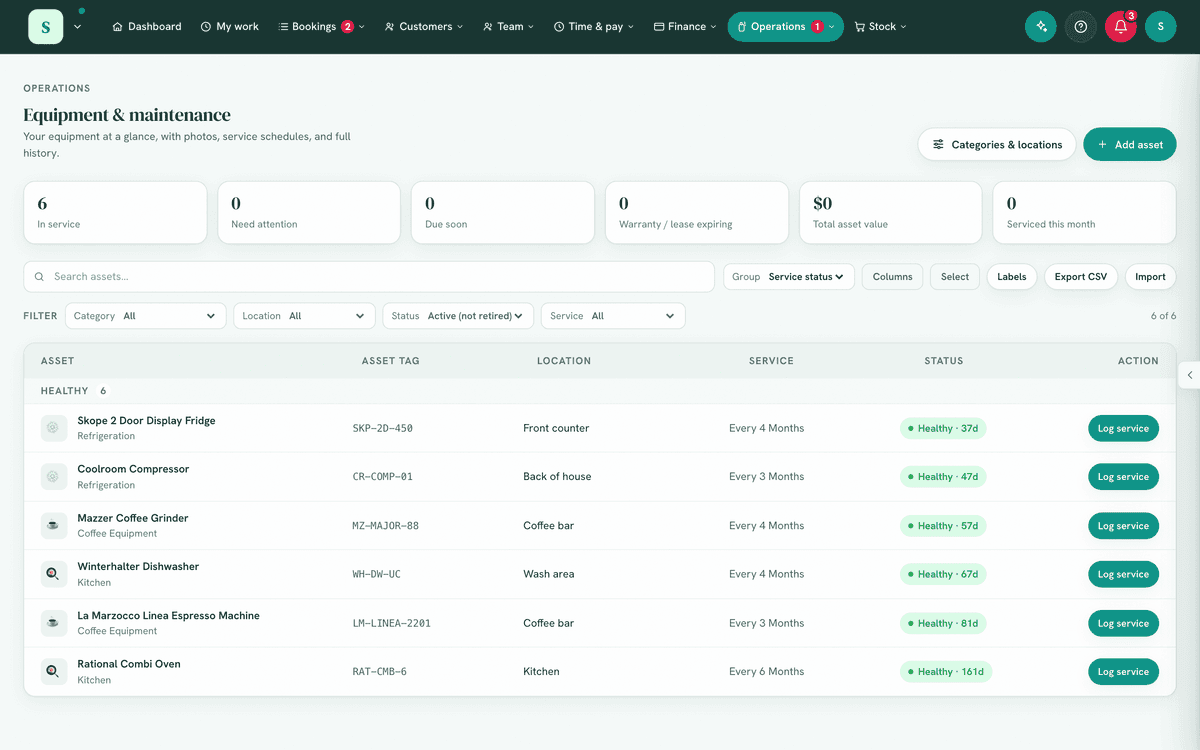
A list of assets. Each row shows a health chip and the columns your business chooses to display (tag/identifier, location, service, status), always with the asset name and an action.
A service-health chip per asset:
Chip Meaning Healthy · Nd Serviced; next service is N days away Due in Nd Due within 14 days (amber) Overdue Nd Past its service date (red) Never serviced No service recorded yet (red) No schedule No service interval set Retired Out of service Buttons to add an asset, manage your categories/locations/statuses/ fields, and (in select mode) act on many assets at once.
Opening one shows its card, and on it Faults on this: how many times this machine has been reported broken, how many are still open, and each one linking to it. That sits directly under its servicing history, because "should I replace this" needs both halves. It appears only when the machine has actually had a fault, and only if you use Maintenance.
6. Turning it on
Settings → Modules→ under Operations, switch on Equipment & maintenance.- Open
Operations → Equipment. If you chose a business type at sign-up that suits it (gym, venue, salon, trades…), you'll already have starter equipment to edit.
7. Step-by-step tasks
7a. Add an asset
- Select Add asset.
- Enter the name (e.g. Espresso machine).
- Set a category and location (type your own, or pick an existing one).
- Set the service interval (e.g. every 3 months) and the last serviced date so its health can be calculated.
- (Optional) Add make/model/serial, an identifier/tag (a rego plate or serial goes well here), a photo, and acquisition details (purchased/leased/financed/donated), purchase date and cost, supplier, warranty expiry, lease expiry and end-of-life date.
- (Optional) Set an Owner to record it as a customer's equipment. You can also start from the customer's own page: Their equipment → + Add opens this form with them already picked.
- (A vehicle the business drives) Tick This is a vehicle. It is then offered under Finance → Vehicle trips, Asset tag reads Registration, and an Engine capacity box appears, because a logbook names the car by its make, model, engine capacity and registration. The box shows on your own equipment while Vehicle trips is switched on. A new asset in a category named for vehicles (Vehicle, Car, Van, Ute, Truck, Fleet, Motorbike) starts ticked; untick it if it is not one. A customer's car never carries the box: it is not one of the business's vehicles.
- Save.
Expected result: the asset appears in the list with a health chip based on its interval and last-serviced date. Customer-owned equipment shows the owner's name, and an Owner filter (and list column) appears once anything is owned.
7a-i. Service by hours or kilometres
A tractor, a forklift or an excavator is serviced by its hour meter, a ute by its odometer. Any asset, your own or a customer's, can be serviced that way, as well as by the calendar or instead of it.
- Open the asset and select Edit.
- Under Servicing, fill in Its meter counts with what the meter counts: hours or km, or your own word.
- With Serviced on a schedule, fill in Or every beside Service every (for example 250 hours), and At beside Last serviced, the reading when it was last serviced.
- On a new asset, Reading now records today's reading.
- Save.
When it is due. The next service falls at the reading at its last service plus the interval: last serviced at 1,000 hours, every 250, due at 1,250. When the calendar has an interval too (every 12 months), whichever comes first decides. To go by the meter alone, leave the time's Service every blank.
Readings. The asset's card shows its newest reading, how much it is used (for example About 4 hours a day), and a list of readings with where each came from. Readings come from:
- Record a reading on the asset's card, with the day it was taken;
- the job card, under Reading, for the job's equipment (see Jobs);
- Log work, when the work is on equipment with a meter;
- Log a service, which asks for the reading at the service;
- Import at the top of Customers, from a column such as Engine hours or KMs.
A meter only goes up, so a reading lower than one taken earlier (or higher than one taken later) is refused, and the message names the reading it disagrees with. A wrong reading can be removed from the list with Remove.
About when. From the last year of readings (at least a week apart), the card works out roughly when the due reading will be reached: at 1,250 hours (about 30 Oct at its usual use). That estimate can mark it due soon and send its owner's reminder in time, but only a real reading can make it overdue: a machine parked for the winter uses no hours, so it is never chased on a guess. With no estimate yet, it is due soon once it is within a tenth of the interval.
The badge. The health chip reads Over by 10 hours, Due in 70 hours, Due in 11d or Healthy · 140 hours to go. A schedule by the meter alone with no reading at its last service reads Needs its last service reading.
Who is told. Everything that says a service is due counts the meter: the register's counts and filters, the business health score, the morning digest, and the email to a customer whose equipment is due, which names the reading (is due for its next service at 1,250 hours, around Friday 30 October).
7b. Log a service, and start the count again
Logging a service is what starts the count again. There is no separate reset: the next service is worked out from the day it was logged and, on a schedule by hours or kilometres, the reading at it. Recording a reading on its own changes nothing about when the next service falls.
- Open the asset (or scan its QR label).
- Choose to log a service.
- Set the date, who serviced it, an optional note and cost. On an asset with a meter, enter the Reading at this service; it starts on the newest reading. A schedule by the meter cannot be logged without it, because the next service counts from it.
- Save. The asset's last serviced date (and reading) updates and its health chip turns green; the service is added to its history. A refusal is shown in the dialog, which stays open so it can be put right.
From the job instead. When the service was a job (a logbook service, a machine's 250 hour service), select Log this as its service under Next service on the job card, after saving the job's reading. Or tick Count this as a service when logging the work. See Jobs.
Logged the wrong reading or date? Log the service again with the right one. The newest service is what the next one counts from.
7b2. For next time on its card
The card lists what was found on it and not done yet, under For next time, each with the day and job it was noted on. Add one with Add (one per line), and tick one off with Done or Not needed. ✕ removes one noted on the card by mistake. Each piece keeps its own list: a customer's ute and van never share one. On your own equipment (the café's coffee machine) the list stays on its card; it is never on an invoice. See Jobs, For next time.
7c. Print & use QR labels
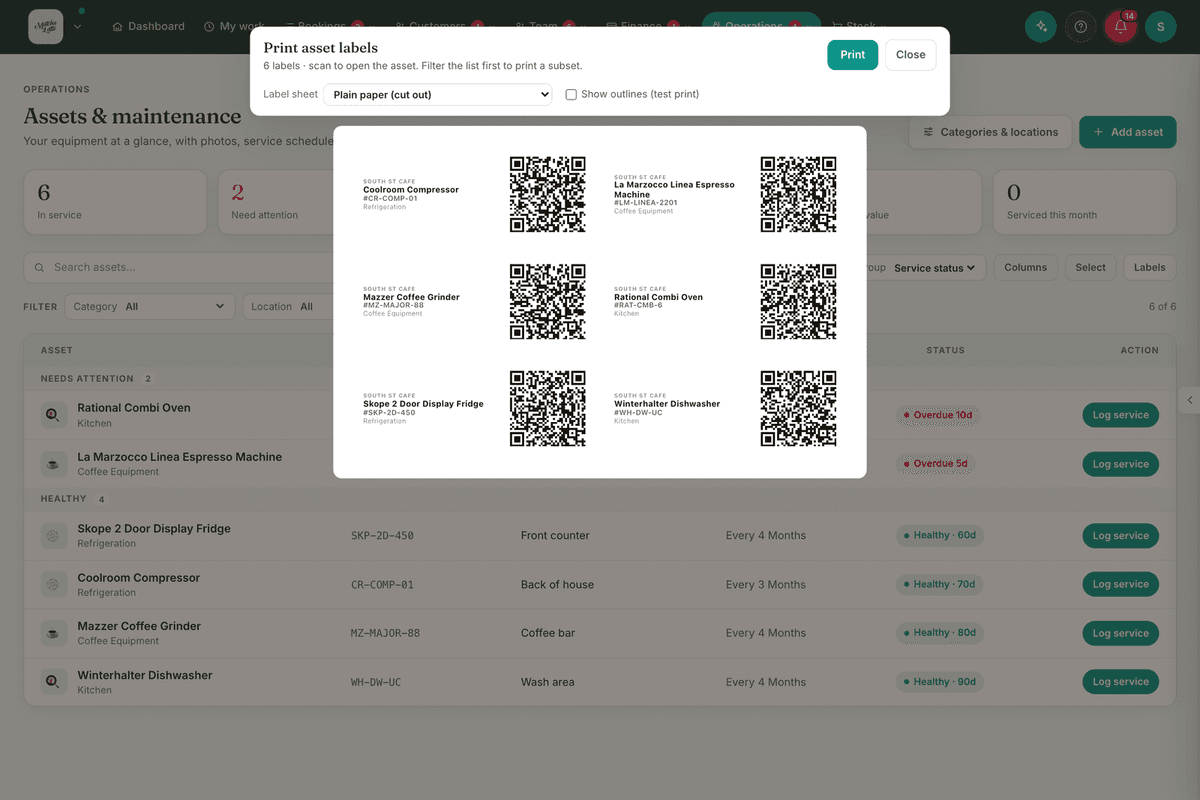
- Tick one or more assets (select mode) and choose print labels, or open a single asset and print its label.
- Stick the label on the equipment.
- Scanning the label opens that asset's record directly, ready to log a service or check it out.
7d. Check an asset out / in
- Open the asset.
- Check out to a person (staff assignee) with an optional note when it leaves; check in when it returns.
- The asset shows who currently holds it; the history records each movement.
Checking out is for your own equipment. A customer's vehicle or equipment has no Check out, because it is not lent to your team.
7e. Change status / retire
- Open the asset (or select several).
- Set its status, e.g. In use, In storage, Under repair, Retired, Lost / stolen (or your own statuses): press the status at the foot of its drawer. Each choice says what it means for service reminders and the list.
- Retired and Lost / stolen assets are hidden from the default view (switch the status filter to All to see them) and stop showing service reminders.
7f. Customise lists & fields
- Choose Manage.
- Add/rename categories (with a default service interval), locations, and statuses (each status has a behaviour: serviceable or not, hidden or not).
- Add custom fields (text, number, date or choice list), e.g. Rego, Engine no., Fuel type. Date fields show a relative-expiry chip like warranty/lease.
7g. Bulk actions
- Turn on select mode and tick several assets.
- Apply an action to all of them: print labels, change status / retire, move category or location, or delete.
8. Examples
Beginner. A café adds its Espresso machine with a monthly service interval and today's date as last serviced. It shows Healthy · 30d. A month later it flips to Overdue until someone logs the service.
Real-world business. A party venue tracks its soft-play frame, PA system and projector, each on its own schedule. The dashboard's Assets due shortcut and the Reminders digest flag anything overdue before the weekend's parties.
Advanced. A trades business adds a custom Rego date field and a Fuel type choice list to its Vehicle category, records purchase cost, warranty and lease expiry for each ute, prints QR labels for the toolkits, and checks tools out to apprentices each morning, all visible in the history.
9. Reports & exports
- Costs for your accountant, the second tab (also Finance → Equipment costs): what the business owns and what it paid, with the GST, the first use date, the invoice on file and any disposal, laid out for your accountant, with its own CSV and Print. See Equipment costs.
- Service history per asset (date, who, note, cost).
Print the service history
Open the equipment and press Print on its Service history. Summary gives one line for each job and each service logged, newest first, with the reading at the time when one was taken. Full history gives each job's work, parts and notes as well. Tick Show amounts first to include what each job came to (its labour and parts, billed or not) and what each service cost; it starts unticked, because the history is often printed to hand to the owner. The page carries the equipment's registration or ID, its owner for a customer's equipment, and the latest reading, and opens with Print or save as PDF.
Printing it needs permission to view equipment. Its jobs need permission to see the team's work logs; without it the history has the services only, and the screen says so.
- Health view across the register (overdue / due-soon / never-serviced), filterable and groupable.
- Export CSV writes whatever is on screen, so it follows the tab and any filters you have set. The first column is Owner, either Ours or the customer's name, so the file is safe to hand to an accountant or an insurer without them having to guess whose is whose.
- Import never sets an owner. A spreadsheet can only give you a name, and ownership is a link to a real customer record, so an Owner column in a file you import is read and reported but deliberately not applied. Anything already on the register keeps the customer it has.
- The export has Vehicle (Yes or blank) and Engine capacity columns, and an import reads them back: Yes, Y, True, 1 or a tick mark a vehicle, and No, N, False or 0 clears it.
- Your own overdue equipment feeds the dashboard, Business health and the Reminders & digests module. Customers' equipment feeds the morning digest only, by name.
10. Common mistakes
- No last-serviced date → the asset reads Never serviced (red) even if it's fine. Set the date when you add it.
- Interval of 0 / blank → No schedule; it will never remind you. Set an interval for anything that needs regular servicing.
- A meter schedule with no reading at its last service → the chip reads Needs its last service reading and nothing can fall due by the meter. Fill in At beside Last serviced on Edit, or log the next service with its reading.
- Looking for a retired asset and not finding it, switch the status filter to All.
- Typing a new category for every asset by accident, pick from your existing ones to keep the list tidy.
11. Troubleshooting
| Problem | Fix |
|---|---|
| An asset I added is missing | Check your filters (category/location/status/"expiring only") and search box, clear them. |
| Health chip says "Never serviced" | Log a service, or set the last serviced date on the asset. |
| Managed lists / custom fields / check-out don't appear | These rely on optional database updates; if they're missing entirely, ask your administrator whether the latest updates are applied. The core register still works. |
| Scanning a label does nothing | Ensure you're signed in to the back-office on the scanning device; the label opens the asset within your workspace. |
| Overdue items not in my digest | Confirm the Reminders & digests module is on and you've opted into asset reminders. |
| A reading is refused as lower than an earlier one | The meter only goes up. Check the figure and the date; if the earlier reading is the wrong one, select Remove beside it on the asset's card, then record again. |
| "Enter the reading at this service" when logging a service | The asset is serviced by its meter, so the next service counts from this reading. Enter it, from the dash or the hour meter. |
| An asset serviced by hours never shows a date | It has no use per day yet: that needs two readings at least a week apart. Until then it is due soon once within a tenth of the interval. |
12. Error messages
The Assets screen works inline (toasts like "
Related: Maintenance · Safety & cleaning · Reminders & digests