Module · Customers
Where to find it in the app
- Use it: Customers → Customer list
- Turn it on/off: your business name (top-left) → Settings → Modules → Customers → Customers
Plan: Solo and Business · Module group: Bookings & schedule · Navigation:
Customers → Customer list
1. Overview
Purpose. A single record for everyone who has booked or been invoiced, their history, total spend, your private notes and tags, and their marketing consent. It's the CRM for salons, clinics, studios, trades and any relationship-based business.
How it's built. HappierBiz derives the directory automatically from your bookings and invoices, grouping by the person's email so the same customer isn't duplicated. You then enrich each record with notes, tags and consent. You can also add a customer manually (7d), handy for wholesale/corporate contacts or people you want on file before their first booking.
Who is on the list. Someone appears from their first booking, while it stands. Once they have come in, confirmed a booking, paid anything or been invoiced, they stay for good, even if a later booking is cancelled. Someone whose bookings never went ahead (a checkout they didn't finish, a request you declined, or a cancellation or no-show with nothing paid) is left off the list, the count and your marketing. Their record is kept out of sight, so if they book again, what happened last time is still on it.
What they have paid is money that reached you, less refunds. A deposit kept when a booking was cancelled counts, and so does a cancellation fee. The value for a month, quarter or year is worked out the same way, by the date of each booking or invoice.
2. When to use it
- To look up a returning customer's history before they arrive.
- To keep private notes (preferences, allergies, account details) against a person.
- To record and manage marketing consent lawfully (see §7c).
3. Required permissions
- View customers (
customers.view), see the directory and records. - Add / edit customers (
customers.manage), edit notes, tags, consent, archive/restore/delete.
4. Navigation path
Customers → Customer list
5. What you'll see
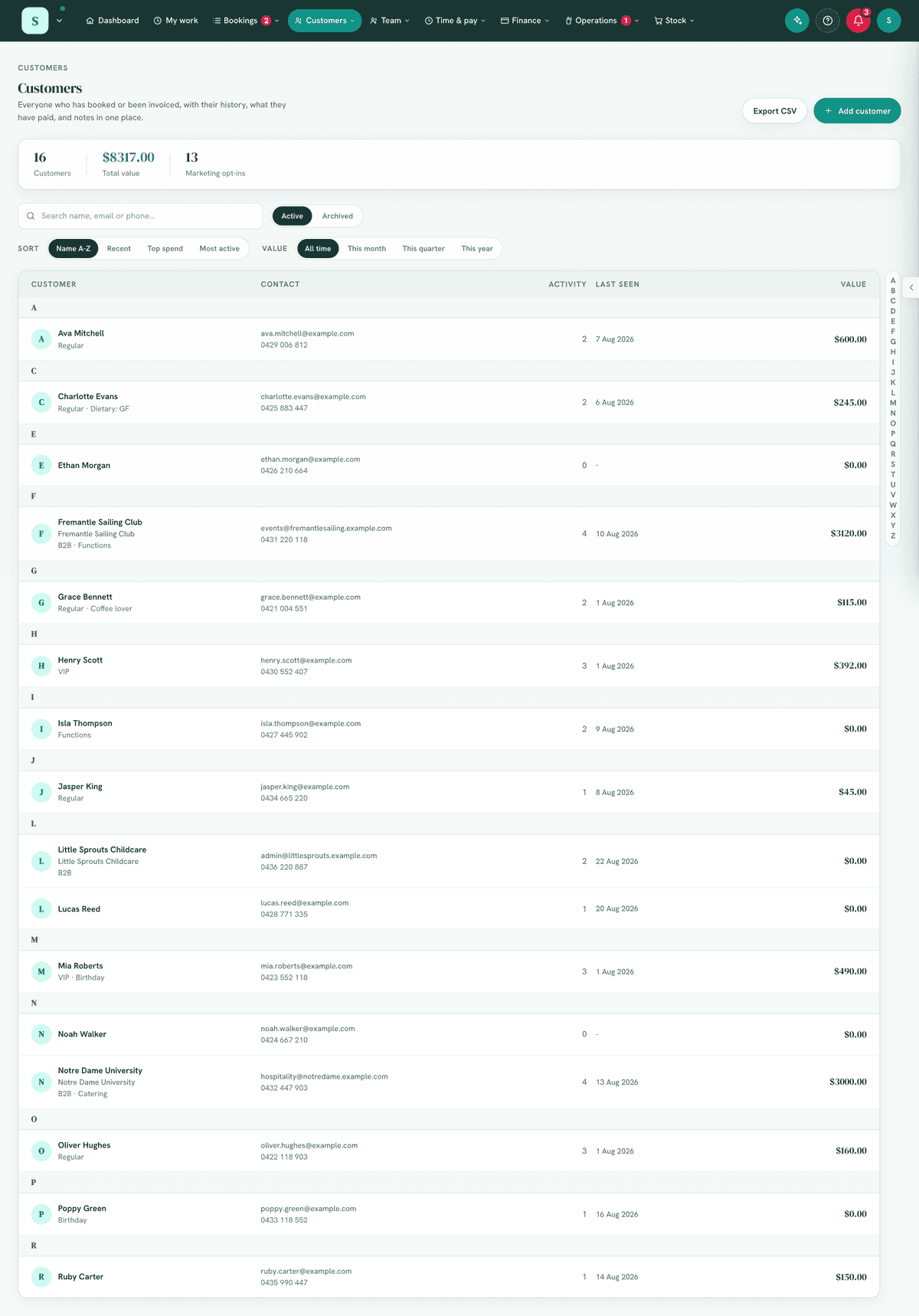
- A stats band: number of customers, total spend, marketing opt-ins, and archived count.
- A search box (name, email or phone) and an A-Z letter filter, with Load more paging for large lists.
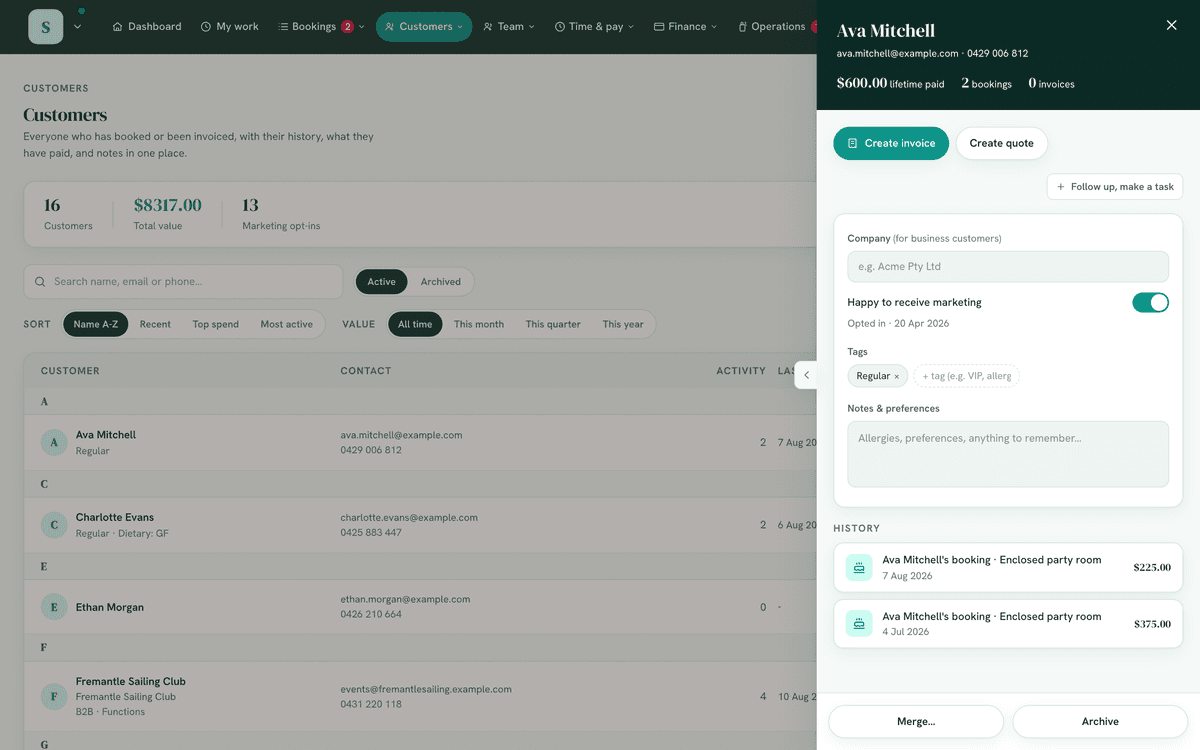
- A list of customers; selecting one opens a drawer with their booking & invoice history, spend, visit count, last seen, company (for B2B customers), notes, tags and a marketing consent control showing how/when consent was given. From the drawer you can also start an invoice or quote for that customer.
- At the top of the drawer, beside lifetime paid, is what they owe now: their unpaid booking balances and unpaid sent invoices, worked out the same way as Money owed, with the part that is overdue marked. It shows for somebody who may see Money owed, and counts invoices only for somebody who may see invoices. It is the same figure as their line on Money owed, which groups by the customer record too.
- Every list in the drawer (Jobs, Their equipment, Work done, Forms, Emails, Documents) starts with its newest five, and History with its newest ten. Show 10 more adds ten at a time, Show fewer folds it back, and a line such as 15 of 240 says how many are showing out of how many there are. The count beside each heading is every record, not only the ones showing. See 7f3.
- The History list shows the newest ten records first. Press a booking, an invoice or a quote to open it, when you have permission to see bookings or invoices; otherwise it is listed without a link.
- With Jobs on, Jobs lists every job for this customer: work still to do first, in the order it happens (one that is late, then the next visit, then work not booked in yet, newest first), then finished work newest first. The heading counts the open and on hold jobs and all their jobs. Each line has the job number and title, its status (On site, Late, Open, On hold, Done, Billed), the equipment, who is on it and when, and what it is worth so far. Press one to open its job card. New job opens a job with the customer already filled in, for somebody who may open jobs.
- With the Equipment tool on, the drawer also shows Their equipment: the vehicles, pools, units or machines this customer owns, each linking to its full record and history, with + Add to record a new one already in their name. A piece with a job open shows that job under it; one with nothing open offers + New job for this, with the customer and the equipment filled in. The one in for a job now comes first, then the one most recently in, then the rest by name. One they no longer have goes last. Each one on a service schedule shows when it is due (Service: Due in 300 km, Service: Overdue 12d), by the same rule as its own card.
- For next time lists what was found on their equipment, or for them, and not done yet, oldest first, named for the equipment. Each opens the job it was noted on. It is ticked off on a job or on the equipment's card (see Jobs, For next time).
- With Jobs on, Work done lists the time logged for this customer, newest first: the day, the hours, what was done, the job number and whether it is billed. Press an entry on a job to open that job's card. Work logged for the customer with no job is listed without a link. Entries on the same day show the last one logged first. The hours and the count beside the heading cover every entry, however far back. The printed customer pack lists the newest 100 and says so when there are more. Seeing it needs the permission to view the team's work logs.
- An Add customer button (see 7d).
6. Turning it on
Settings → Modules → Bookings & schedule → Customers. Records appear as
soon as you have bookings or invoices.
7. Step-by-step tasks
7a. Find a customer
- Open
Customers → Customer list. - Type a name, email or phone, or tap a letter.
- Select the customer to open their record.
7b. Add notes & tags
- Open the customer.
- Type notes (private to your team) and add tags (e.g. VIP, Sensitive skin).
- Changes save against their profile, they never overwrite the booking/invoice history that feeds the record.
7c. Record marketing consent (compliance)
HappierBiz follows Australian Spam Act practice: consent is never pre-ticked or assumed.
- Open the customer.
- Toggle marketing consent on only when the person has genuinely agreed.
- When you turn it on, the system records when and how (here, "Recorded manually"). The record also shows other bases, Opted in at booking, Imported, and the date.
- Turning consent off records an opt-out date. Customers can also unsubscribe themselves; that updates this automatically.
Only people with consent receive marketing, see Marketing.
7d. Add a customer manually
- Choose Add customer.
- Enter their name and email (plus their Mobile, a Home or business phone, company, their address, tags and notes as needed). The address is four boxes: street address, suburb, state and postcode, all optional. Accounts email is optional too: where their invoices go when their accounts team pays (7j). An address outside Australia, or a separate billing address, is added on their record afterwards (7j). Only tick marketing consent if they've genuinely agreed, it's recorded as "Recorded manually" with the date.
- Save. The record behaves like any other; their bookings and invoices attach to it by email from then on.
7d2. Import customers from a spreadsheet
Bring your customer list across from a spreadsheet or the system you used before, with the equipment you look after for them on the same rows: a workshop's cars, a pool service's pools. Needs the permission to manage customers. Their equipment also needs Equipment & maintenance switched on and the permission to manage it.
- Choose Import at the top of Customers. Download the template shows the columns. A file exported from your old system works too: the usual headings are understood, such as First name and Surname, Mobile, Address or Street, Suburb, State and Postcode, Country, Accounts email (or Billing email, Invoice email), ABN, Tags and Notes. A Billing address or Postal address column is where their bills go, and a Site address, Service address, Job address or Physical address column is where they are (see 7j). With only one of the two, it is their address.
- One row per customer, with a name and an email or phone. Their equipment goes on the same row: Rego, Make, Model, Year, VIN, PIN or Serial number, Last serviced, Service every (months), and a reading: KMs (or Odometer) or Engine hours (or Hours, Hour meter). A customer with two cars has two rows with the same email or phone, and becomes one customer with two cars.
- Drop the file in. Before anything is saved you see how many customers are ready, who is already on your list, which rows are left out and why, and the columns used and ignored.
- Choose Import. Up to 5,000 rows a file: split a bigger list and import each part.
What happens:
- A customer already on your list (matched by email, or by phone when the row has no email) only has their empty details filled in. Nothing they already have is replaced, an archived customer stays archived, and an import never changes anyone's email or phone.
- Someone you deleted from your customers is left out.
- A part of a row that doesn't read, such as a phone number that isn't one, a state that isn't Australian (on a row with no other country) or an ABN that fails its check, is left out and listed by row. A row with a Country other than Australia keeps its state or region and postcode as written. The rest of the row still comes in. A row with no name, or with no email and no phone, is left out.
- The first number on a row that reads is their main number, looked for in the Mobile column, then Phone (or Home phone, Work phone), then Home or business phone. The next different number is their home or business phone, and a third goes into the customer's notes. A file with only a Phone column fills the main number, which shows as Phone when it is a landline.
- Marketing consent is never imported. Record it on a customer when they agree.
- Equipment belongs to the customer on its row. A registration already on someone else's record stays there. Without a service interval, equipment is due yearly from its last service; with no last service date, it isn't due until one is logged.
- A reading that is a number becomes the equipment's first meter reading, in hours or kilometres, dated the day of the import (engine hours when the row has both). It is written in the equipment's notes too. To service it by the meter, set Or every and At under Servicing on the equipment (see Equipment, 7a-i).
- Nobody is emailed by the import. If you email owners when their equipment is due (Remind your customers on the Reminders page), anything that falls due soon goes with the next service reminders, and the import says how many.
- Importing the same file again matches what is already there, so nobody is added twice.
7e. Merge duplicate customers
A person who booked under two different emails appears as two records.
- Open the duplicate, the record you want to fold away.
- Choose Merge…, then search for the customer to keep and pick them.
- Confirm. The duplicate's notes, tags, consent and history move to the kept record, along with everything filed against it: bookings, invoices, jobs, equipment, work logs and documents. The kept record keeps its name, and the duplicate stops appearing on its own. A merge can't be undone.
7e2. Link a household
A couple sharing a home, or two parents booking for the same child, can be linked as one household. A form set to keep its answers for Their household is then answered once for all of them: whichever of them books next sees the same details and confirms them, rather than being asked again.
- Open the customer and find Household.
- Press Link someone, search by name or email, and pick them.
- To take someone out, press the cross beside their name. A household of one person stops being a household.
Each person's own answers stay theirs. Only forms set to Their household are shared. Merging two customers keeps the household and every answer they gave through their bookings on the customer you keep.
7e3. Their dogs, children and others
When a form is kept about each one of something your clients bring (see Forms, 7a7), the customer record lists them in a section of their own, named in your words. The section shows while a form is about them or the customer has one on file. Turn the forms about them off and it goes from every customer who has none. Each shows its alerts and, for somebody who manages forms, the latest answers and any dates on file with whether they were checked.
- Open the customer.
- Add one by name, or press Edit on one to rename it, set its alerts or archive it.
- Alerts are short flags your team sees on every booking for that one and at check in. Up to eight, each a few words.
They belong to the customer and their household, so a partner linked to the same household books them too. Archiving one takes it off future booking pages and leaves its past bookings and forms as they were.
7f. See a customer's documents
Signed waivers, quotes and contracts filed against a customer show in a Documents section on their record, newest first.
- Open the customer.
- Scroll to Documents.
- Select any row to open it in
Operations → Documents.
Paperwork gets there two ways: filing a form submission into Documents (see Forms & workflows), or picking the customer when you upload a document.
The folder still decides who can open it. If some of a customer's documents sit in a folder you cannot see, the section says how many are not listed rather than quietly showing you a shorter list.
Nothing filed against a customer? The section is hidden rather than showing an empty heading.
7f2. See every email sent to a customer, and whether it arrived
Open the customer and scroll to Emails. It lists every email the app has sent them, newest first: booking confirmations and reminders, changes and cancellations, invoices, quotes and receipts, replies to their forms, and messages. Each one says Delivered, Sent, Didn't arrive or Not sent, with the reason when it didn't arrive. What each word means is in Forms & workflows, 7d.
- It covers every address they have used, including any record merged into theirs.
- You only see the emails for what you are allowed to see: an invoice email needs the invoicing permission, a booking email the bookings permission, a reply to a form the forms permission.
- Your own replies show what you wrote. Automatic emails show their subject only, because they carry working links to the customer's booking or answers.
- Emails to your team never appear here, even when a team member is also a customer.
- The count beside Emails is every email you may see, however far back.
- When their reply reached HappierBiz's no-reply address instead of your email, such as an automatic answer from an accounts team, it shows under the email it answers as Reply from [address], and a copy came to your business email (see Invoicing, When a customer's system replies to an email).
- Nothing sent yet? The section is hidden.
7f3. See older jobs, work and emails on a busy customer
A regular can have hundreds of jobs, entries and emails. Each list on their record stays short until you ask for more.
- Open the customer.
- Under the list, press Show 10 more. Press it again to keep going back in time. Older records are fetched as you reach them, so the whole history is there, the oldest last.
- Show fewer folds the list back to its newest few.
The line on the right, such as 15 of 240, is how many are showing out of how many there are. If more can't be fetched right then, the list says Couldn't load more. Try again. and keeps what is showing.
To find one job without paging, Search everything (the magnifying glass) finds it by its number or name, and a vehicle or machine by its registration or ID, whose record lists every job on it.
7g. Archive, restore or delete
- Open the customer.
- Archive to hide someone you no longer deal with (reversible, Restore brings them back).
- Delete removes their notes, tags and consent and stops them reappearing in the directory. Their booking and invoice history is deliberately kept as a business record. You'll be asked to confirm.
7h. Print a customer pack, or download it as Word
Everything about one customer as a single document: their details, their bookings, their invoices, quotes and receipts with what was paid, the work logged for them, the forms they signed (with the signature) and the documents on their file, in date order. For your accountant, an insurer, or a handover.
- Open the customer and select Customer pack.
- Choose Print or save as PDF. The pack opens in its own window with a Print button; your browser makes the PDF, so there is nothing to install.
- Or choose Download as Word for an editable .docx of the same pack.
A section with nothing in it says so (No invoices on record), so the reader knows it was checked. Your private notes and tags are never in the pack: it is written to leave the building.
⚠️ The pack only contains what your role can see. Without the invoicing permission there is no money section, without the forms permission there are no signed forms, and documents follow their folder access. The pack itself never says what was left out, because it is about to be handed to a stranger; the screen tells you instead, so you know before you hand it over. Preparing a pack is recorded in your audit trail like a CSV export.
7i. Change a name, email or phone number
- Open the customer and press Change under Contact details.
- Correct the name, email, Mobile or Home or business phone, then Save.
A customer has two numbers. Mobile is their main number: the one a booking gives, the one the booking page's Booked before? finds them by, and the one their record is filed under when they have no email. It reads Phone when the number is plainly a landline. Home or business phone is a second, optional number: it never changes their bookings, and a booking that gives it never replaces their mobile. The same number in both is kept once. Both show at the top of their record and both are found by search.
Changing the name, email or mobile updates every booking they have to match, and the invoices that carried their old email carry the new one. Changing only the home or business phone leaves their bookings alone. An invoice sent to their Accounts email (7j), or to any other address on purpose, keeps its address. Their history, notes, documents and invoices stay on the one record. If the new email or phone already belongs to another customer the record is left as it was and you are pointed at the other one: Merge them (7e) instead. An email that appears on one of their invoices can be replaced but not left blank.
7j. Their address and billing details
Open the customer and find Address and billing. It opens by itself when something is saved in it, and shows a one line summary when closed.
- Street address, Suburb, State and Postcode: their address. It prints on their invoices and quotes, and a trip to them is measured to it.
- Country: leave it empty for an Australian address. For another country, such as an accounts office in Auckland, type the country: the state becomes State or region and the postcode is written that country's way, and the country prints at the end of the address on their bills. A country with no address is refused.
- Bills go to a different address: tick it for a customer whose bills go
somewhere other than where they are, such as an accounts office, a head office
or whoever pays for them. The address above stays where they are, and a
Billing address appears under it, starting as a copy to change. Then:
- Their quotes, invoices, receipts and statements are made out to the billing address.
- Travel and By road measure to their address, and an online booking fills it in.
- A quote or invoice for work at their address prints it as Job address under the job, because it is not the address billed. A job's site, when it has one, is the Job address instead.
- Untick it and their address is the one address again, for their bills too.
- An address given on an online booking never changes their billing address.
- Accounts email: where their invoices, payment reminders, receipts for
invoice payments and account statements go, for a customer whose accounts team
pays the bills. Empty, those go to their email. Their bookings, booking
confirmations and reminders, quotes, job visit notices, messages and marketing
always go to their own email. An accounts email the same as their email is
kept once. The top of their record shows Invoices to and the address.
- Changing it moves their unpaid invoices that were going to the old address (drafts and sent invoices, not paid or void ones) to the new one, so the next reminder reaches it, and says how many moved. A paid invoice keeps the address it was sent to.
- A new invoice for them fills in the accounts email; a quote fills in their email. You can still change the email on any invoice before sending it.
- Searching Customers or an invoice's customer box by the accounts email finds them.
- First name: the greeting on their invoice emails.
- ABN: checked against its check digit, because it prints on a tax invoice.
- Account code and Payment terms: their own terms beat your business default on a new invoice.
Change what you need and press Save. Everything is optional.
When they book something you do at their place (We come to the customer), the address they give fills in their address here if it is empty. A booking changes an address already saved only when they confirm it is their new one (Save this as my address, after the code from their email) or a team member who can manage customers does, so a visit to somebody else's house does not move them. Returning customers can have their saved name, phone and address filled in on the booking page. See Bookings, A6c and E6.
Usual discount. With discounts on (Settings → Invoicing & tax → Discounts), the customer has a Usual discount box under Address and billing: a % off their parts, and their labour too when your business says so. It comes off parts added to their jobs from then on, never a booking's price. Setting it needs both Edit customers and Edit invoices; anyone else sees it. Empty it, or type 0, to remove it. See Invoicing, 7k.
Travel. When your business charges travel (Settings → Invoicing & tax → Travel charges), the customer has a travel box: Your rate, Their own rate per km, or Never charged. Charged by zone, it is Your zones or Never charged, and a rate of their own is kept for charging by the kilometre. It applies to trips recorded from then on, on their jobs and when travel is added to their invoices and quotes; a trip already recorded keeps its rate. Setting it needs both Edit customers and Edit invoices; anyone else sees it. See Invoicing, 7k2 and 7k3.
Price level. When your business has trade price levels (Stock settings, under Parts), the customer has a Price level box beside it: Usual prices, or one of your levels. Parts added to their jobs from then on are charged at it. Setting it needs both Edit customers and Edit invoices. See Stock & ordering, 7b-vii.
7k. Your own customer fields (More details)
Keep what your business needs to know about each customer, in your own words: pronouns, an emergency contact, allergies, a fleet number, their birthday. Nothing is built in, so every business names its own.
- Go to Settings → Customers and press Add a field under Your customer fields.
- Give it a Name and a Kind: Text, Number, Date, A choice from a list (type the choices, one on each line) or Yes or no. On a date field you can tick This is their birthday (one field only).
- Save field. Use the arrows to put your fields in order.
Each customer then has a More details card. Press Change, fill in what you know and Save. A number field takes a number, a date field a date, a list field one of its choices; anything else is refused with the field named, and nothing is saved. Empty a box to clear it.
- Archive a field you no longer use: it leaves every customer, and the values already on them are kept, so Put back (under Archived fields) brings them back. A field's kind can't change once made; make a new field instead.
- Searching Customers finds a customer by any of their field values.
- Export CSV has a column for each field, and an import reads a column with a field's name into it (dates as 2026-03-14, yes or no for a yes or no field).
- The customer pack prints them.
- Changing your fields needs Edit business settings; filling them in on a customer needs Edit customers; anyone who can see customers sees them.
7l. Where customers came from
Settings → Customers → Where customers come from is your list, one on each line. It starts with a few common ones; change it to suit you.
- On a customer, More details → Change → How they found you picks one.
- Tick Ask on the booking page to add an optional How did you hear about us? with your list. Their answer is kept on the booking, and on the customer when nothing is recorded for them yet. A team member booking for them is not asked.
- Where they came from at the top of Customers lists each source with how many customers came from it, how many of those in the last twelve months, and what they have paid in all. Customers with nothing recorded are on their own line.
- An import reads a How did you hear about us, Source or Lead source column; a value that isn't on your list is left out and listed by row.
7m. Credit limit and accounts on hold
On a customer, the Account card has their Credit limit and On hold. Setting either needs both Edit customers and Edit invoices; anyone who can see customers sees them.
- Credit limit: what they may owe you. Their record says Over their $… credit limit when what they owe passes it, and a new invoice for them says how much is left, or by how much they are over. Nothing is refused: it is your call.
- On hold: they can't book on your booking page or a kiosk until you take it off; the page asks them to contact you, and says nothing about the hold. Your team can still book them. Their record and a new invoice for them say On hold, with your note (only your team sees it).
7n. The birthday email
With a date field marked This is their birthday (7k), Settings → Customers → Birthday email sends a short email on the morning of their birthday, from 9am your time.
- It goes only to customers who agreed to marketing and haven't unsubscribed, never to a customer you have blocked, and carries an unsubscribe link like every marketing email.
- Write your own Subject and Message: {first_name} and {business} are filled in. A birthday on 29 February is wished on 28 February in other years.
- Each customer is wished once a year. It counts towards your marketing emails, and waits behind booking emails on a busy day.
- Turn it off by unticking Send a birthday email and pressing Save.
8. Examples
- Beginner (salon): before a client arrives, search their name, open the record and read your note "prefers low lights, allergic to PPD."
- Real-world (clinic): tag patients by service type and use spend/visit history to see your most loyal clients.
- Advanced (studio): record manual marketing opt-ins captured at the front desk, then use Marketing to email only the opted-in segment, confident every recipient consented.
8b. Messages, and when a conversation closes
Customers → Messages is the two-way inbox for your conversations with customers about their bookings: the ones they start, and the ones you start from a booking. Two boundaries are worth knowing about.
The red badge and the bell. A new message from a customer lights the Messages badge and the bell. Both clear as soon as that conversation is on your screen: on a computer, the conversation showing beside the list (Messages opens the newest one by itself), and on a phone, once you tap into it. You don't have to reply for them to clear. Your other devices catch up within a minute.
On your phone. Each message a customer sends also arrives as a phone notification for everyone who can read Messages and has switched their phone on (My work → On your phone). One notification per conversation, kept up to date with the newest message; tap it to open the conversation. Turn it off for your own phone with the messages from customers line on My work → What you get told about. A blocked customer's messages never reach a phone.
Message a customer about their booking. Open the booking and press Message (beside their contact details). Messages opens a new message to them, headed with the booking it is about. Write it and press Send: they are emailed it, with a button back to their booking, where they can read it and reply. From then on it is an ordinary conversation in Messages. If they have already written about that booking, Message opens that conversation instead.
- It needs the permission to see and reply to customer messages, and an email address on the booking. With none, Messages says so: add one under Change contact details on the booking.
- It is always about one booking. To send something to customers who have not booked, or to several at once, use Marketing, which only goes to people who agreed to hear from you.
- The same closing time applies (below), counted from the booking's date. Once a booking's messages have closed, Message shows a note saying when, and where something new belongs.
- If somebody has turned off message emails from your business, you will see the note at the top before you write. Your message is still saved and they see it on their booking.
- The assistant can do it too: ask it to message the customer about their booking, and it shows you the message and the booking on a card to confirm first.
Send a file. In a conversation, press the paperclip beside the reply box. It asks what to send:
- From this device: photos, files or the camera, as your computer or phone offers them.
- From Documents: a file already in your Documents, such as your menu or price list. It lists the documents you are allowed to open, the current version of each. The customer gets a copy; the document itself stays where it is.
- Invoice or quote: see below.
The files show above the reply box until you press Send, and you can remove one with its cross. A file can go on its own, with no words.
- Send PDFs, photos, Word, Excel and PowerPoint files, Pages, Numbers and Keynote files, and text files. Up to 10 MB each, five on one message, and 25 MB together, which is as much as one email can carry. Messages tells you before anything is sent if a file is too big or the wrong kind.
- They reach the customer as attachments on the email, and show on the message in their booking's chat, where they can open them again.
- If they have turned off emails about the conversation, or there is no email address for them, Messages tells you after sending that the files did not go by email.
- Files are kept privately with the conversation. Only people who may see customer messages can open them, and they count towards your storage.
- The paperclip is in conversations already started. To send a file with your first message about a booking, send the message, then the file.
Send an invoice or quote. Press the paperclip, then Invoice or quote. It lists this customer's invoices and quotes: the ones on the booking the conversation is about, and any made out to the same email address. Press Send on one and it goes exactly as Send in Invoicing sends it: its own email, the whole document, with its Pay or Accept button. The conversation shows Sent invoice INV-0044 by email., and so does the chat on their booking.
- It needs the permission to manage invoicing, the same as sending from Invoicing.
- A draft becomes sent, as it does in Invoicing.
- A void, cancelled or unapproved invoice is not offered, and nor is one with no email address. If it is made out to a different address from the conversation, the list shows where it will go.
- To make a new invoice or quote, use Finance → Invoicing, then send it from either place.
Let customers reply by email. Switch on Customers reply by email into Messages at the top of Messages (managers). From then on, when you message a customer or reply to a form they sent, the email carries your whole message and its own reply address. When they press Reply:
- Their answer lands in that conversation, with the badge and the bell, marked by email. The whole conversation stays together, so when somebody writes again months later, everything said before is above it.
- A reply to a form starts a conversation for it, headed Form: and the form's name, with what they sent at the top. Their answers show only to people who may manage forms; anyone else sees which form it was and when.
- Photos, PDFs and everyday documents up to 10 MB come with it, five at most. Press the file's name on the message to open it. The copy to your email carries them as attachments, as many as one email can hold, and names any it could not. The Email me new messages alert names each file but does not carry it. Anything else is named in the message, so you can ask for it another way.
- Out of office and other automatic replies are ignored.
- A reply from a different address is kept, and shows who it is from.
- One conversation takes up to 30 emails a day. Past that, the rest are not kept.
A copy to your email. With Copy replies to our email on, which it is to start with, each reply also comes to your business email (or the owner's, when that is blank), and the Email me new messages alert is not sent there as well. Reply to the copy and your answer goes to the customer from your business and is kept in Messages, exactly as if you had typed it here, files included. The same rules apply: it is not sent when messaging is off, when the conversation has closed, or when a file can't be sent (the wrong kind, over 10 MB, more than five, or more than 25 MB together), and you are emailed to say it wasn't sent and why. A reply is sent with all its files or not at all.
Your team. Everyone allowed to reply to customer messages answers in the same conversation, and each reply shows who sent it. The Email me new messages alert takes a reply too: someone with that permission who answers it reaches the customer from your business, under their own name, and it is kept in Messages. Somebody without that permission who replies is emailed that it wasn't sent, and nothing is added to the conversation.
Emails sent before you switched it on still bring replies to your business email. Switching it off stops new emails carrying the reply address; a customer replying to one that already did still reaches the conversation. If you don't see the switch, it isn't available on your account yet.
Your side of a thread closes after a while. By default, 30 days after the booking, whoever started it. Once it closes the reply box is replaced by a short note saying so, and the thread stays completely readable. Nothing is deleted.
- Their side never closes. A customer can always write to you.
- Anything they write reopens it, straight away, for another full window.
- Change it with My replies close at the top of Messages. Options run from 14 days to 90, or Never closes if you would rather threads stayed open indefinitely. Managers only.
Why it exists. A reply about a booking is a normal, factual message. An offer or a piece of news is marketing, and Australian law treats the two differently: marketing needs the customer's consent and an unsubscribe link on every message. The Marketing module does both automatically. A booking thread does neither, so sending offers through one is the part that can get a business into trouble. The closing window keeps the two apart without stopping you answering anyone.
If you send the same message to three or more customers in a day, Messages says so and points you at Marketing. It never blocks the message.
Your customers can switch the emails off. Every "you have a new message" email carries a link letting them stop those emails, either for that booking or from your business altogether, and the same tick box sits under the chat on their booking page. When somebody has switched them off you will see a note at the top of their thread. Your replies are still saved and they still see them next time they open their booking, they just are not emailed about it. Emails about the booking itself, confirmations, changes and receipts, are never affected.
9. Reports & exports
The stats band gives live totals (customers, spend, opt-ins, archived). Spend and visit history per customer are shown in the drawer.
What counts as a visit. Each booking that stands (not cancelled, declined, a no-show or a checkout left unpaid), and each invoice with no booking behind it. An invoice raised for a booking is the same visit, so a customer who came in twice and was invoiced both times has 2 visits. A customer whose newest booking is still ahead reads Booked for and its date where the list shows when they were last seen. The Export CSV button (top right) downloads whichever directory view you're on, active or archived, as a spreadsheet-ready file with each customer's contact details, visits, spend, consent and notes, then where they came from and each of your own fields (7k, 7l). Where they came from shows how many customers came from each source (7l). Marketing audiences are built from consent in the Marketing module.
10. Common mistakes
- Re-typing customers who already exist, most records appear automatically from bookings/invoices; use Add customer only for people with no booking yet, and search first.
- Duplicate-looking customers, records group by email; a person who booked under two different emails appears twice. Merge them (7e), and standardise on one email going forward.
- Turning on consent to "be safe", don't. Only enable it when the person actually agreed; the record is an audit trail.
- Deleting to "tidy up" and expecting history to vanish, history is kept on purpose; use Archive for tidying.
11. Troubleshooting
| Problem | Fix |
|---|---|
| A new booking's customer isn't showing | The directory groups by email, a booking without an email won't form a CRM record. Add the email to the booking. |
| There's no Message button on a booking | It needs the permission to see and reply to customer messages, an email address on the booking, and customer messaging switched on (Let customers message us at the top of Messages). |
| Message says messages about this booking have closed | The closing time has passed, counted from the booking's date (My replies close at the top of Messages). Use Marketing for something new; if they write to you, the conversation reopens. |
| Two records for one person | They used two different emails. Use Merge (7e) to fold them into one, and standardise on one email going forward. |
| Marketing won't send to someone | They have no recorded consent, or they unsubscribed, check the consent control. Also check the "customers aren't receiving your emails" panel: a bounced or complained address is held back regardless of consent. |
| "N customers aren't receiving your emails" | Their address bounced (usually a typo) or they reported an email as spam. Fix the address on their record, then press Try this address again. Until then nothing is sent to a bounced address, and marketing is withheld from one that reported spam (receipts and booking confirmations still go out to those). |
| An import left a row out | The reason is listed against its row number, usually no name or no email and phone. Fix the row and import the file again: customers already in are matched, not added twice. |
| An import didn't add a vehicle | Its registration is already on another customer's equipment. If the car changed hands, open it under Equipment and change its Owner. |
| A customer says the booking page asked them to contact you | Their account is On hold (7m). Take it off under Account, or book them yourself. |
| No birthday emails went out | Send a birthday email is off, no date field is marked as their birthday, or the customer hasn't agreed to marketing or has unsubscribed (7n). |
| A field value won't save | It doesn't suit the field: a number field takes a number, a date field a date, a list field one of its choices. The message names the field. |
| A deleted customer reappears | A new booking/invoice under the same email recreates the record (history-derived). |
| The Messages badge or the bell stays lit | Open the conversation it is for: it clears as soon as that conversation is on screen. Another device catches up within a minute, or straight away when you switch back to it. |
| There's no paperclip in a conversation | The reply box has closed (a note says when), messaging is off, or files aren't available on your account yet. On a booking with no conversation yet, send your first message, then the file. |
| A customer says a file didn't arrive | Open the conversation: the file is on your message. If a note said they had turned off emails, it is on their booking's chat only, so ask them to open their booking. Otherwise ask them to check their junk folder. |
| A file won't open from a message | The link lasts two minutes and opens in a new tab. If your browser blocked the tab, allow pop-ups for this site and press the file again. |
12. Error messages
Customer edits save inline (e.g. "Customer deleted", "Customer archived"). The delete action shows a confirmation dialog spelling out that notes/tags are removed but booking & invoice history is kept.
Related: Marketing · Bookings · Invoicing · Marketing consent stance (compliance)